Company panel
The Company panel is the screen for the leaders above the properties. It lists every property of the company, opens any of them to look at everything read only, and lets the leaders write to the Property Managers.
- Who sees it
- Company leaders, who each have their own account and are not members of a property team. The workspace owner and managers open the same panel from the dashboard.
- Where to find it
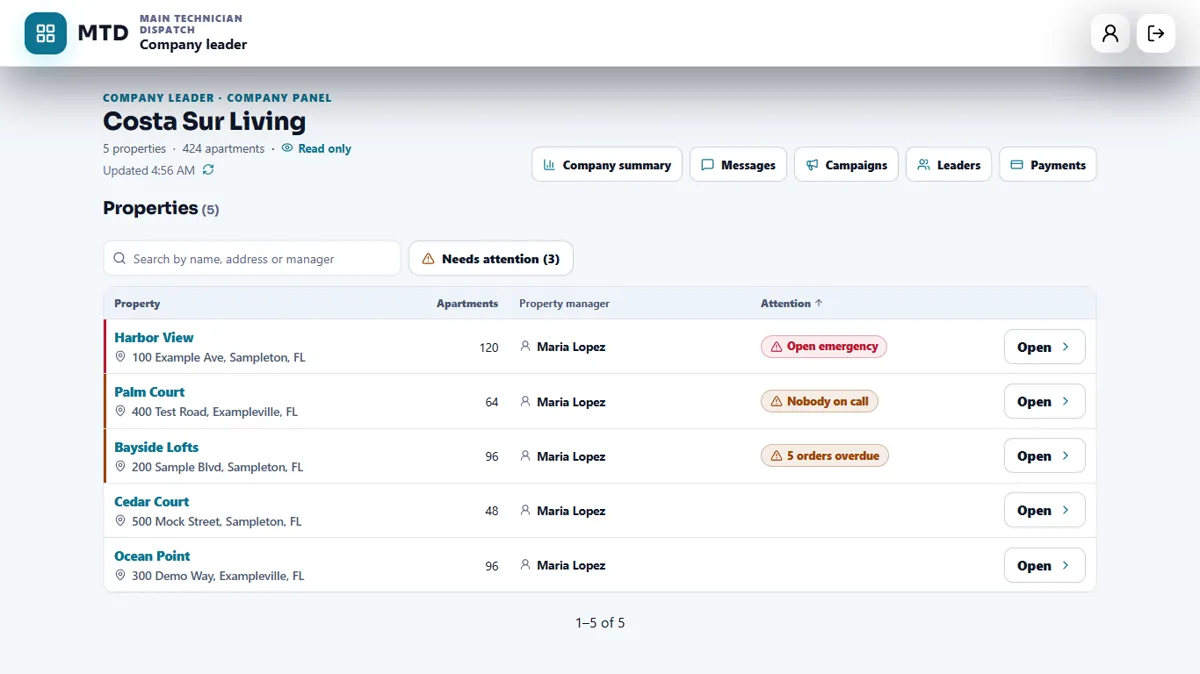
- A leader signs in and lands on the Company panel. The buttons at the top are Company summary, Messages, Campaigns, Leaders and Payments.
- What it needs
- Nothing to turn on. A leader is invited by email with a company email address and needs 2-step sign-in and a PIN.
What it is for
A leader can answer "how are the properties doing?" without calling each office. Everything about the daily work is shown read only: a leader never edits work orders, Make Ready, inventory, on call, the time clock, vendors or residents. The Property Manager of each property makes the changes.
Find a property and open it
- Search or filter
Use the search box (name, address or manager), the region list, and List or Map. Tap Needs attention to keep only the properties with an Open emergency, Nobody on call or overdue orders.
- Tap Open
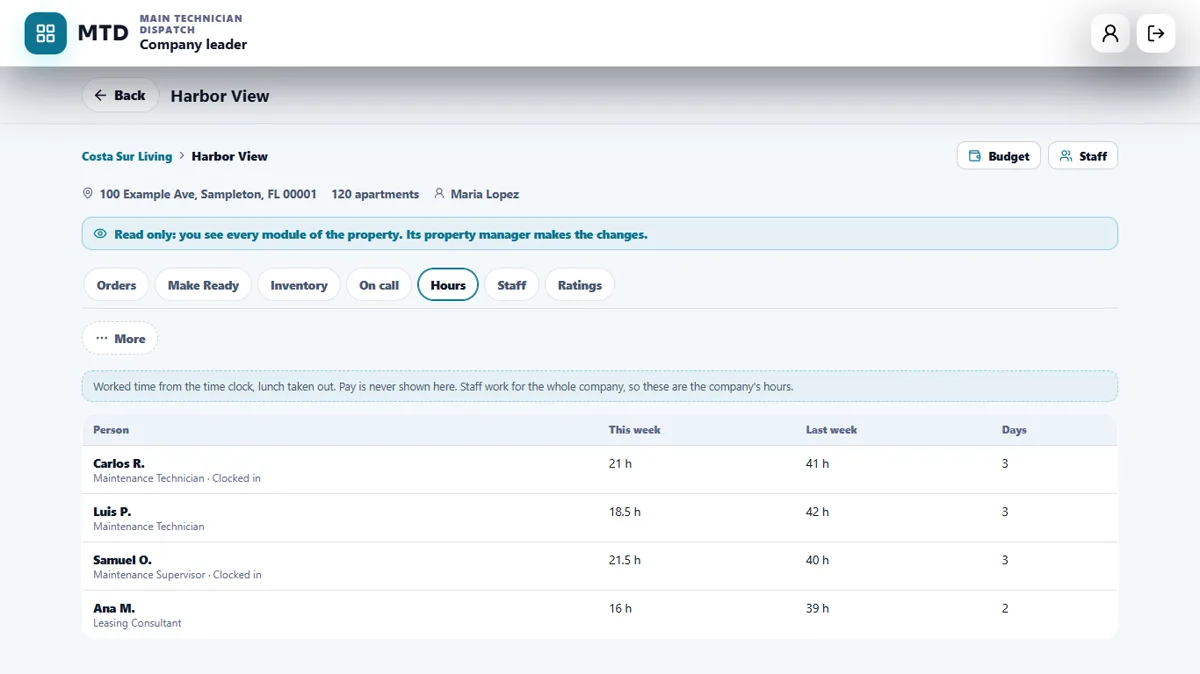
The property page shows its address, apartments and Property Manager, and a note that it is read only. The sections are Orders, Make Ready, Inventory, On call, Hours, Staff, Ratings and More.
- Read each section
Orders lists the open orders and how long each has been open. On call shows who is on call now and the turns coming up. Hours shows worked time from the time clock, lunch taken out, and never pay. Staff lists the people and their last sign-in. Ratings shows the resident ratings.
See the whole company at once
- Open Company summary
It shows Performance for This month and Last month: orders opened and completed, open now, average response, average completion and spend against budget.
- Compare properties
The By property table lets you sort by name, completed orders, response or spend, with the rating of each property. Tap View to go to that property.
- Write to the Property Managers
Under Messages, tap New message to write to one Property Manager, New group to write to several, or Send email. The messages and the groups stay in the list.
- Send an inspection campaign
Under Campaigns, a leader can send an inspection campaign to the properties and follow how many have approved it. Nothing can be changed after it is sent.
Add properties and invite leaders
- Add a property
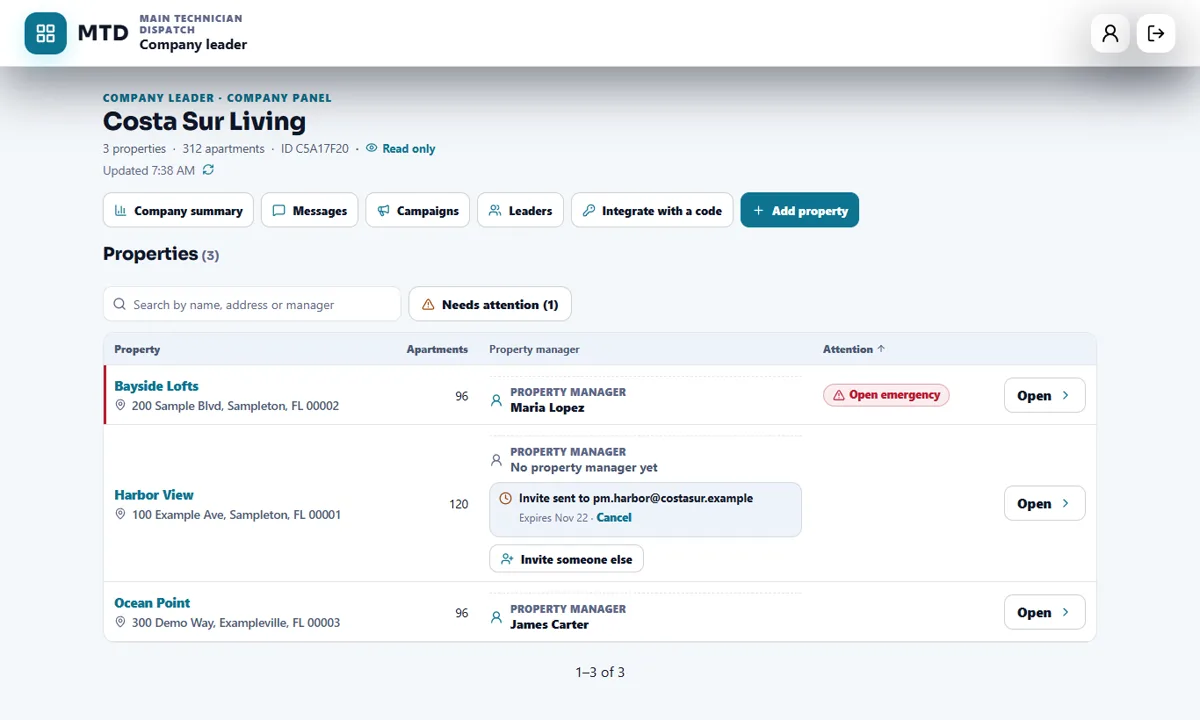
Tap Add property, write the name, address and number of apartments, then invite its Property Manager by email. They get a link, sign up with that email and become the Property Manager. Then they invite their own team.
- Integrate a property that already uses the app
Tap Integrate with a code and write the private property code. Its Property Manager finds the code in Profile, My workspace, Company account, and gives it only to you. Then the Property Manager must accept the request.
- Invite another leader
Under Leaders, write a company email and tap Send invite. Only company email addresses are accepted. Another leader or a boss approves the person who accepted, and each change asks for your PIN.
- Remove a leader
Tap Remove next to the person, enter your PIN and confirm. Removing a leader needs another leader or a boss.
Payments
The payment belongs to each property and the company, not to a person. Under Payments, each property has its own service, with its status and the date it is paid through. Services are never changed without the server checking who you are and a fresh PIN. The amounts are shown only on the Payments screen, and each property's invoices are there too.
Leaders can pay for services, message the Property Managers and invite or remove leaders. Budgets and staff stay with each property's owner and managers. Every leader action and every property view is recorded.
Tips
Start with Needs attention each morning, open the property, and then phone or message its Property Manager.
When the module is turned off
The Company panel has no switch of its own. When a module is turned off for the company, its section in the property page says This module is turned off for this company. The saved data is kept and comes back when the module is turned on.
Related guides
Ready to try it with your own property?
Create your workspace, add your property and turn on the modules you need.