Recurring work orders
Some work comes back on a schedule: filters, lights, grease traps, pumps. Set it once and the app makes the work order on each date, ready to assign.
- Who sees it
- Only the property manager level (owner, manager, property manager) and the maintenance supervisor set up recurring orders. The assistant, the leasing office and technicians do not.
- Where to find it
- Inside Work orders: the Recurring tab, and the Repeat this order button inside an order.
- What it needs
- The Recurring work orders switch in Modules.
Make an order that repeats
- Open the Recurring tab
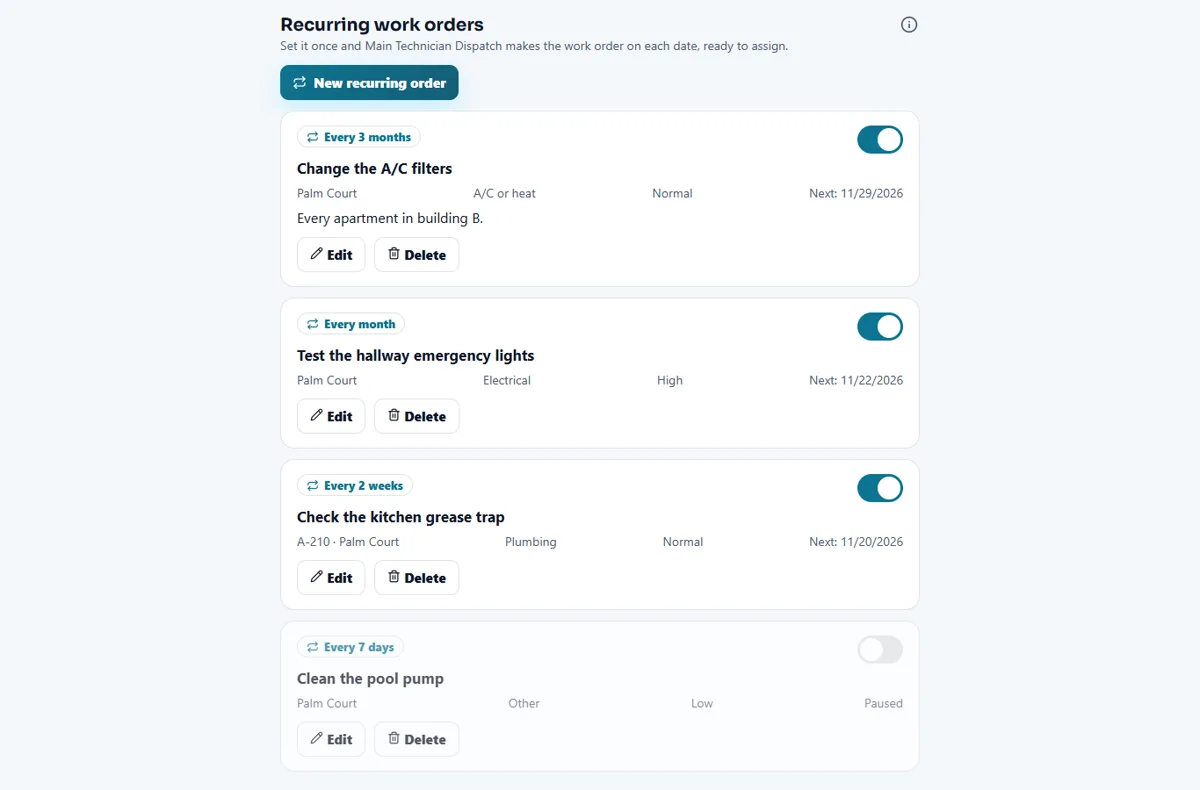
Open Work orders and tap Recurring. You see the recurring orders you already have, each with an On/Off switch, Edit and Delete. Tap New recurring order.
- Choose where
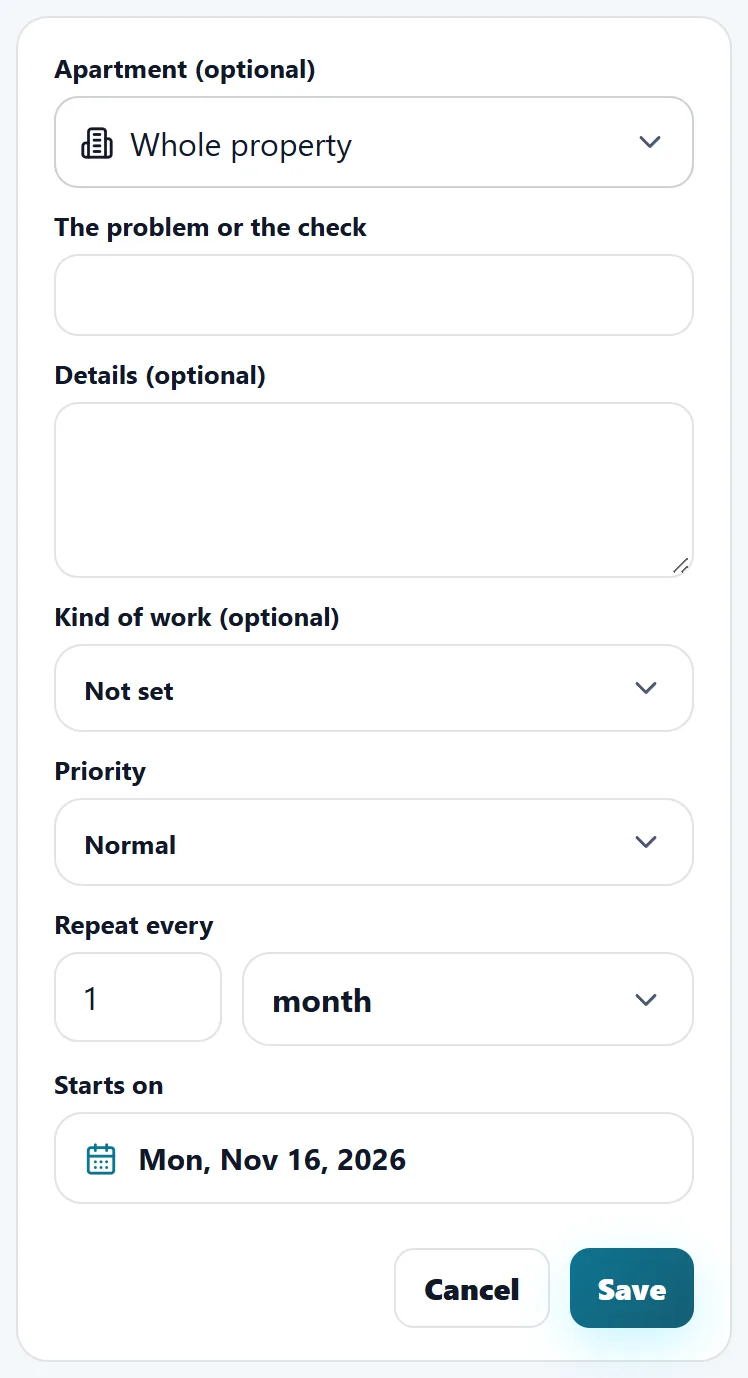
Pick the Property (if you have several). In Apartment (optional) choose one apartment, or leave Whole property for work that is not in one apartment.
- Say what it is
Write The problem or the check (3 to 140 letters), add optional Details, a Kind of work (Plumbing, A/C or heat, Electrical, Appliance, Pests and more) and the Priority (Low, Normal or High).
- Choose how often
In Repeat every type a number and choose days (1 to 365), weeks (1 to 52) or months (1 to 36). In Starts on choose today or a later date.
- Save
Tap Save. If you leave a form with changes that are not saved, the app asks Save changes?.
Or repeat an order you already have
Open any work order and tap Repeat this order. The same form opens, already filled with that order’s apartment and problem. Choose how often and when to start, then save: Done. It will repeat… The new orders appear in the Recurring tab. On the Recurring tab itself you use New recurring order instead.
What happens each time
- The app makes a new work order at 8 am company time on each date, with the apartment, the problem, the kind of work and the priority you chose. It is ready to assign like any other order (see Work orders).
- Turn one off with its switch to pause it. When you turn it back on it never makes up the days it was off. The next date shows on the card, or Paused.
- Delete asks first. The work orders it already made stay.
- If a recurring order stops after an error, its card says It was paused after an error. Check it, then turn it on again.
The repeated-problem alert
The same module also watches for trouble that keeps coming back. When the same apartment gets the same kind of work (for example A/C) for the 3rd time within 60 days, the maintenance supervisor and the property manager level get one notice. If it keeps happening you hear again after 60 days, not with every new order. Technicians never get it.
Only real work orders that have a kind of work count, for example those from resident requests and inspections. The orders made by the Recurring tab, Make Ready, Punch and Go-Back do not count.
Tips
Use Whole property for checks like the pool pump or the hallway lights, and pick an apartment only when the work is inside it. Give each order a title a technician understands without calling you.
When the module is turned off
With Recurring work orders off, the Recurring tab and the Repeat this order button disappear, nothing repeats (the saved ones wait) and the repeated-problem alerts stop. Your saved recurring orders are kept and come back when you turn the switch on. Orders already made stay as normal work orders.
Related guides
Ready to try it with your own property?
Create your workspace, add your property and turn on the modules you need.