Time clock
The time clock lets your team clock in, take lunch and clock out from the phone, and it gives managers one weekly time sheet to check and authorize. It is off until you turn it on.
- Who sees it
- Each person who clocks in sees their own time sheet (read only). The maintenance supervisor sees the team sheet. The Property Manager sees it too when the property has no active supervisor.
- Where to find it
- The big Clock in button at the top of the home screen, and the My time sheet tile. Managers open the Time sheet tile and tap Team.
- What it needs
- The Time clock module turned on, and the property area drawn on the map. Until the area is drawn, nobody can clock in.
What it is for
The time clock replaces paper sheets and text messages about hours. Every punch is stamped with the server time, so nobody has to type a time. The pay period, the overtime rule and the normal work day are set once, and the sheet shows late arrivals, short lunches and missing clock-outs for you.
Clock in, lunch and clock out only work at the property. The location is saved only at the moment of each punch, only the Property Manager and those above see it (your company's IT admin sees it too, read-only), and nothing is saved between punches. The one exception is team positions on the Map: if your property uses them and the person agreed, the position is shared only while clocked in, and it stops at lunch and at clock-out. The kind of device used for a punch (the app or the web) is saved too.
Clock in, take lunch and clock out
- Clock in
On the home screen tap the big Clock in button when you start your day. The bar then says Working since the time you started.
- Start lunch
The big button now says Start lunch. Tap it when you stop for lunch. The bar shows On lunch since the time you left.
- End lunch
When you are back, tap End lunch.
- Clock out
The big button now says Clock out. Tap it once, then tap again to confirm, so a pocket tap never closes your day.
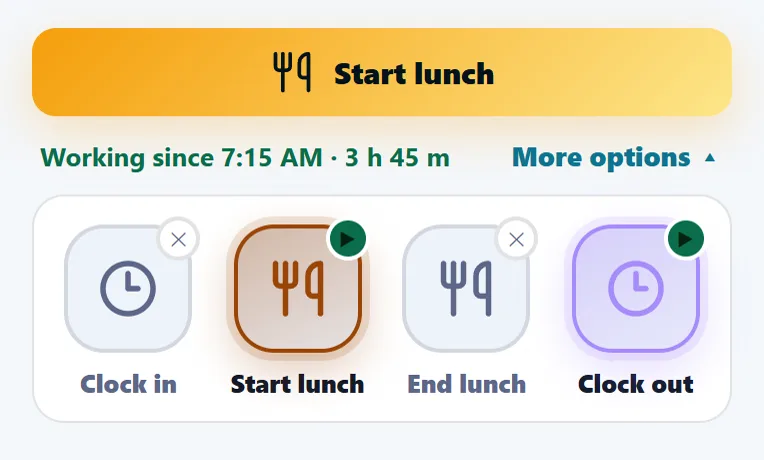
No lunch today? Open More options and tap Clock out. On an emergency call or after the normal hours the day is simply Clock in and Clock out, and the bar says After hours.
Where and when the team can clock in
The Property Manager and the bosses above set these rules in the Team time sheet, under Settings. Every change is recorded, and saving may ask you to confirm with your PIN.
- Draw the property area
Everyone clocks in and out inside the property area drawn on the map. Without an area the clock stays off, staff see a calm message, and the Property Manager is told what to do.
- Choose where the team clocks in
Under Settings tap Change next to Where the team clocks in. Pick Anywhere on the property, First clock-in of the day at the office, or Clock in and clock out at the office. Lunch can always be marked anywhere on the property. Each property has its own office point on the map, with a distance of 30 to 300 meters around it. Where there is no office point yet, everyone clocks in anywhere on the property.
- Set the clock-in start time
Under Settings tap Change next to Clock-in start time. Pick a property, then tick each day and set the earliest time people can clock in. A day without a time has no limit. People on call, or with an emergency assigned to them, can clock in at any hour, and lunch and clock-out are never blocked. Tap Save.
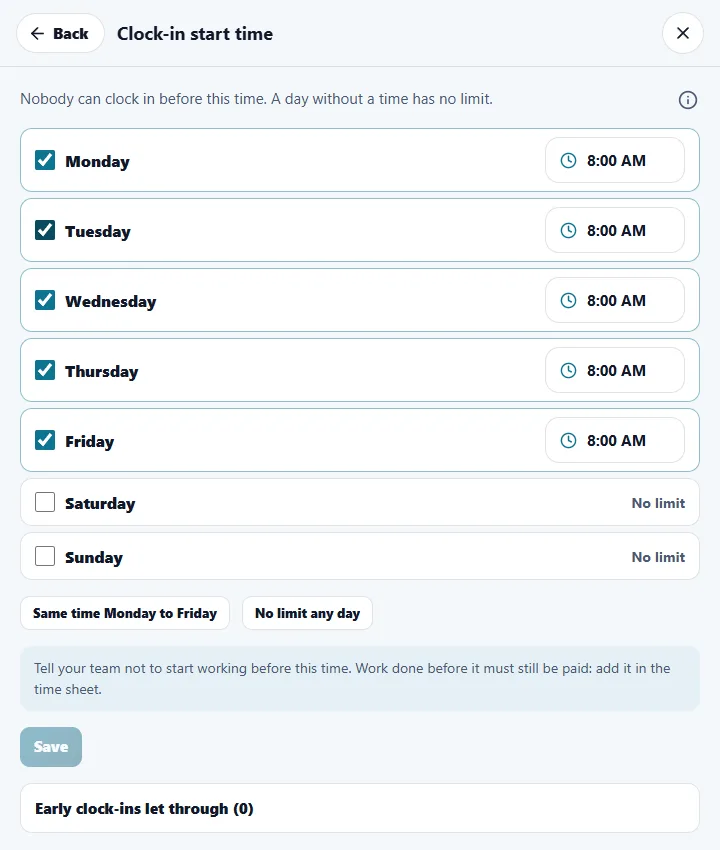
Want to give a margin? Set the time yourself, for example 7:55 AM. Tell your team not to start working before the time: work done earlier must still be paid, so add it in the time sheet. The early clock-ins that on call or an emergency let through are listed at the bottom of the window, for you to check.
The weekly time sheet
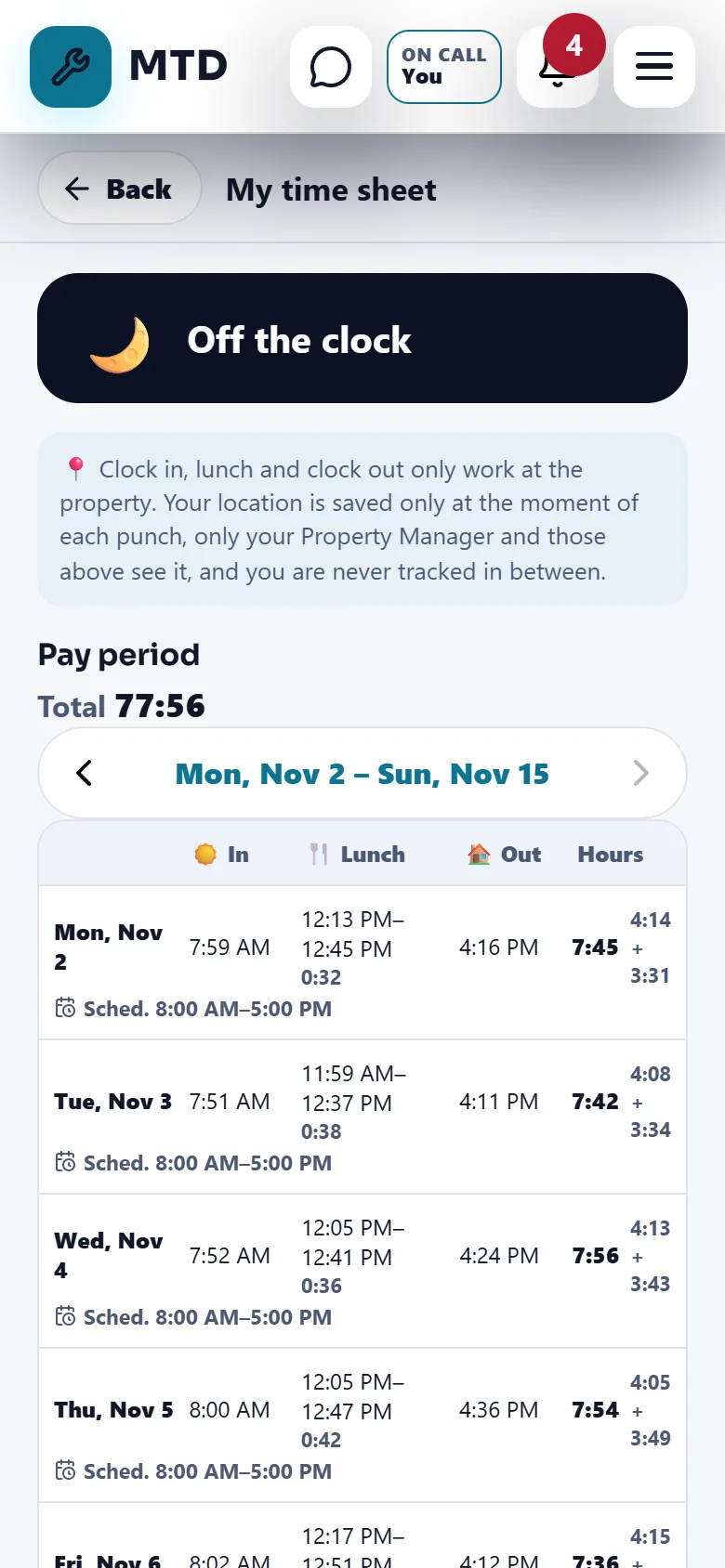
Every person has My time sheet: the pay period with In, Lunch, Out and Hours for each day, the weekly totals and the schedule. It has no buttons that change anything.
Managers use the Team tab. Simple lists people as With problems, To authorize and Authorized. Detailed lets you open each person day by day. Follow these steps for each pay period:
- Open the Team sheet
Tap the Time sheet tile, then Team. On the clock now shows who is working. Use the arrows to move between pay periods.
- Look at Before you authorize
This line warns about what payroll would notice: shifts with no clock-out, shifts marked Needs review, corrections without a reason, overlapping shifts, long shifts and missing lunches. It only warns, so you can still authorize. The Problems panel marks Late and Short lunch; a person with approved time off is never marked late.
- Fix what is wrong
Tap the pencil on a day to correct a punch, and write a reason. Add missing day covers a day someone forgot to clock in. Work schedules and the Settings rules shape what the sheet compares.
- Authorize
After the pay period ends, tap Authorize. The punches of that period are locked until someone taps Unauthorize. Another manager must authorize your own time.
- Export
Export CSV gives a file of the hours. The Payroll portal shows the same hours to your payroll team, read only.
The Property Manager and those above see the punch locations of each worked day, and the company's IT admin sees them read-only. The maintenance supervisor sees and corrects the team's time but does not see the locations.
When someone forgets or cannot clock out
- The person writes to the manager
In the clock bar, Notify my manager lets the person say they left and forgot to clock out, forgot to clock in, had an emergency, or something else, with the time they really left. No location is sent with the request.
- The reminder goes out by itself
Every hour the app checks for a shift still open 30 minutes after the scheduled end, or open more than 12 hours. The person gets You forgot to clock out and the direct boss is told too.
- The manager fixes the time
The manager corrects the shift in the Team sheet with a reason. If the shift stays open and the person clocks in again later, the old shift is closed and marked Needs review.
Emergency confirmation lines
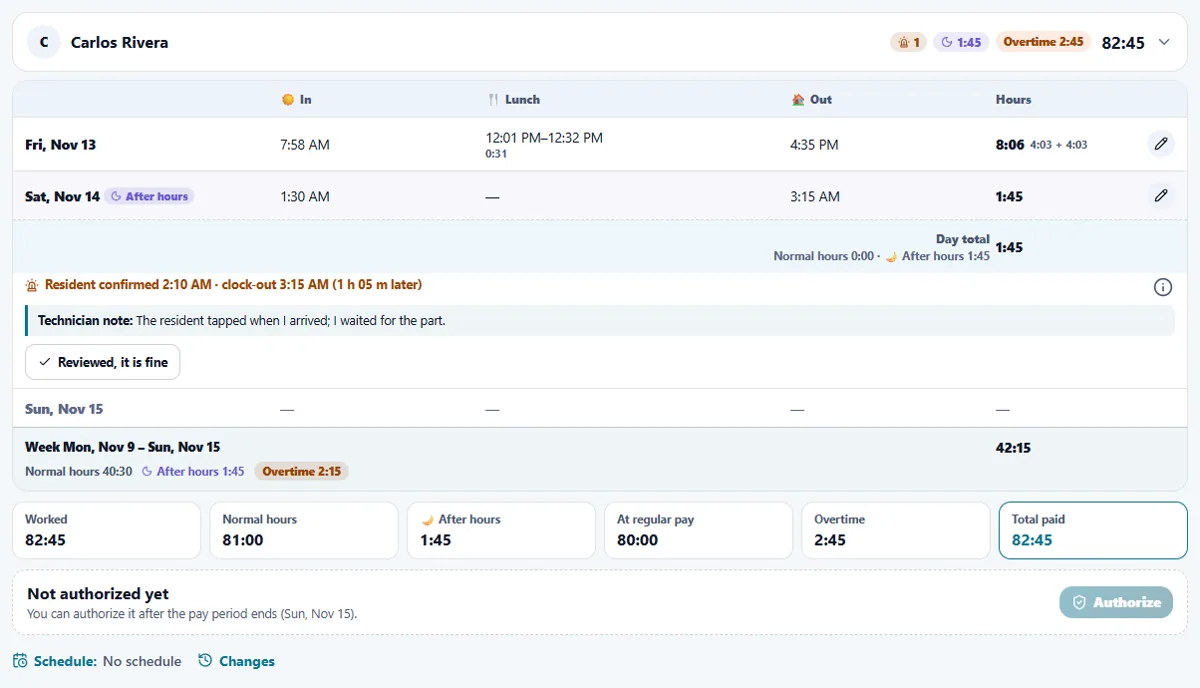
In an emergency the resident can tap that the work is finished. For an after-hours or weekend call-out (using the property's office hours), when a technician clocks out more than 15 minutes after that tap, the day shows a line such as Resident confirmed 2:10 AM and the clock-out time. It is only a flag to look at: pay is never reduced because of it. The Property Manager can write Reviewed, it is fine, and the technician can add one short note.
Tips
Teach the team two habits: tap Clock in at the property, and check My time sheet on Friday. Most problems are found by the person the same week. Use the Simple view first and open only the people marked With problems.
When the module is turned off
The Clock in bar, the time sheet tiles and the Team time sheet disappear, and the Map no longer shows the team on shift. The punches, corrections and authorizations already saved are kept and come back when you turn the module on again.
Related guides
Ready to try it with your own property?
Create your workspace, add your property and turn on the modules you need.