Training
Training gives you a short knowledge test for someone who applies for a job. The applicant takes it on an office computer or tablet, with no account, and only the managers and the supervisor see the result.
- Who sees it
- The property manager level sees every test. The maintenance supervisor sees the maintenance tests. The assistant property manager does not see it.
- Where to find it
- The Training tile on the home screen. A number on the tile counts the tests in progress.
- What it needs
- The module Training turned on in Modules. It is off until you turn it on. The test itself is taken on a computer or on a tablet held sideways.
What it is for
Everyone who applies for the same position gets the same questions, in English or Spanish, and you get a result you can compare. This guide covers the applicant test only.
Start a test for an applicant
- Open Training
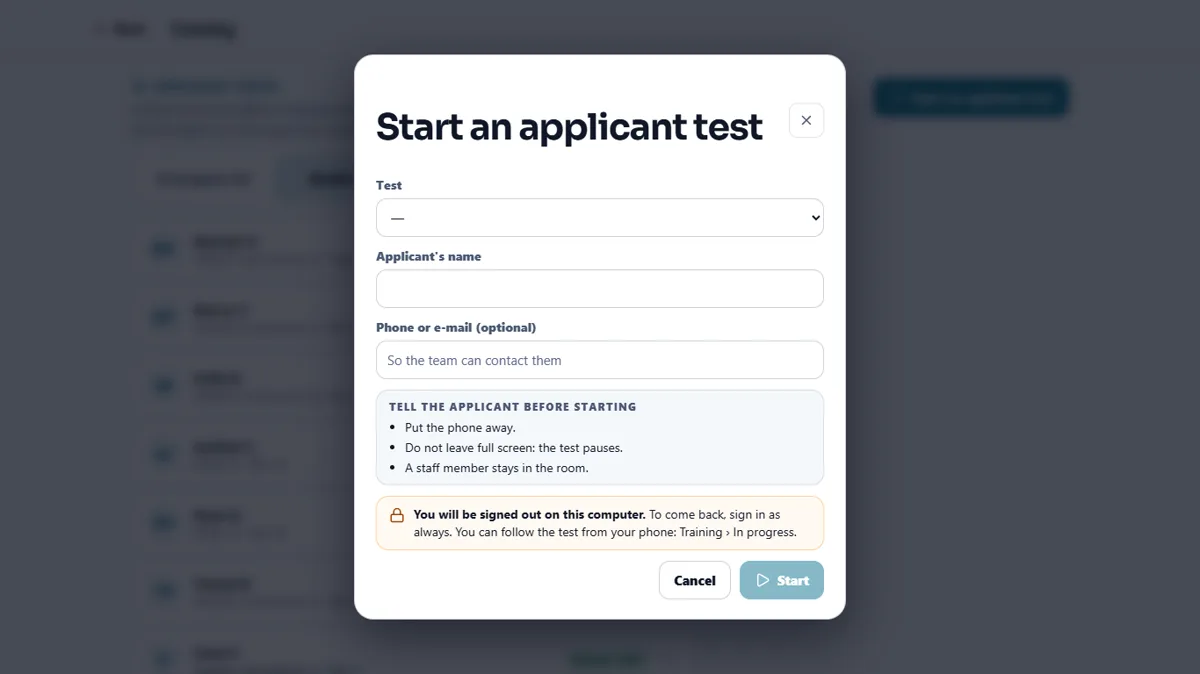
On a computer or a tablet, tap Training and then Start an applicant test. On a phone you can follow the tests in progress, give the code and read the results, but the test is not taken on a phone.
- Choose the test and the person
Pick the Test, type the Applicant's name and, if you want, a phone or email so the team can contact them.
- Tell the applicant the rules
The window reminds you what to say: put the phone away, do not leave full screen because the test pauses, and a staff member stays in the room.
- Start
Tap Start. This signs your staff account out on that computer, so the applicant cannot reach your account. To come back, sign in as always. You can follow the test from your phone in Training › In progress.
What the applicant sees
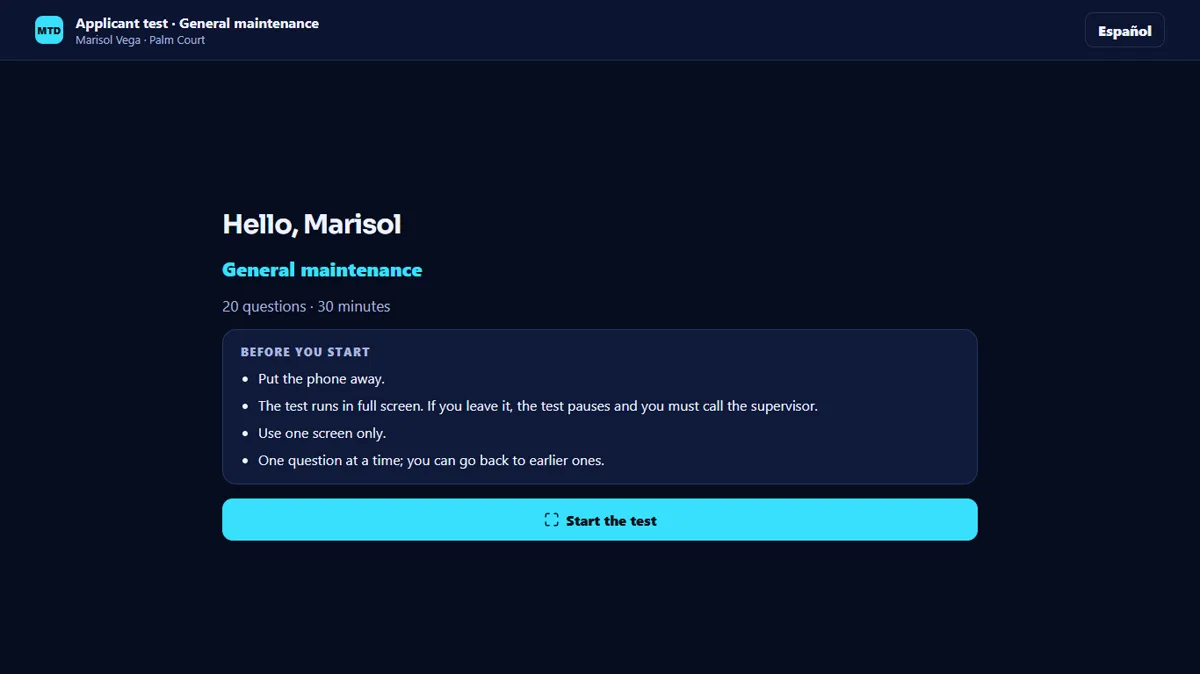
The test opens on its own page. The applicant chooses English or Spanish and sees a welcome with the number of questions and the minutes, and the rules. The test runs in full screen with one question at a time, and the applicant can go back to earlier questions. Each answer is saved when it is chosen, and the time left is shown. At the end the applicant taps Finish and send, and a thank-you page says the team will be in touch.
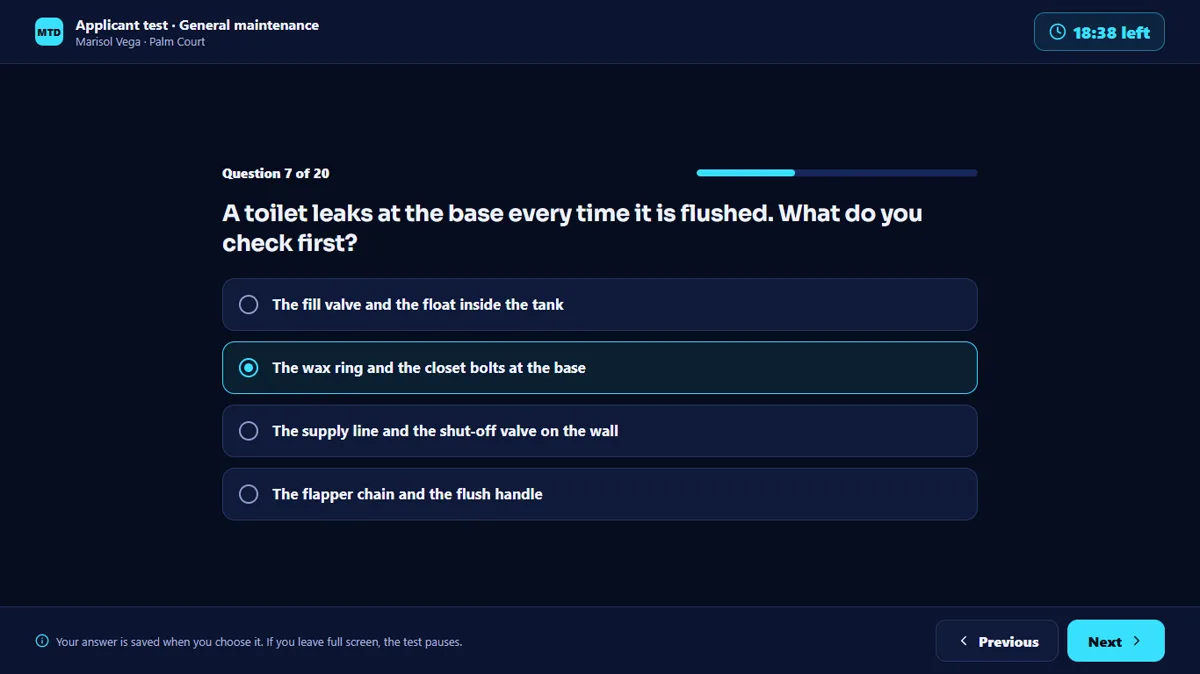
The test pauses, the time stops and the answers are kept. The page asks to call the supervisor. In Training › In progress tap Code for the computer, give the one-use code to the applicant and the test continues. You can also Resume it or Close the test: the answers so far are kept and it shows as closed by staff.
Read the results
- Open Results
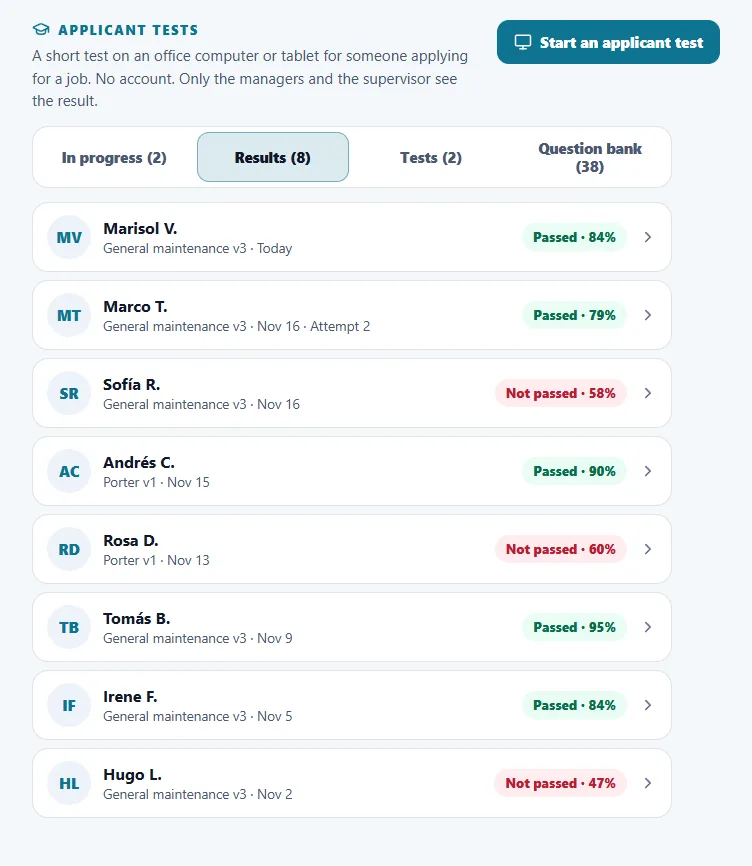
Each row shows the applicant, the test, the date, whether they Passed or did Not passed, how many answers were correct and the time used. Search by the applicant's name.
- Open one result
See how the test ended (sent by the applicant, time ran out, closed by staff), and the exits: times the applicant left full screen or changed window.
- Check the answers
See the answer to each question shows what they answered and the right answer. Open answers are for you to read and do not count for the score.
- Keep or decide
The managers can turn on Keep (legal hold) and mark Decision made. Otherwise the applicant's data is deleted 90 days after the test or the decision, and the result says the date.
Change the tests and the question bank
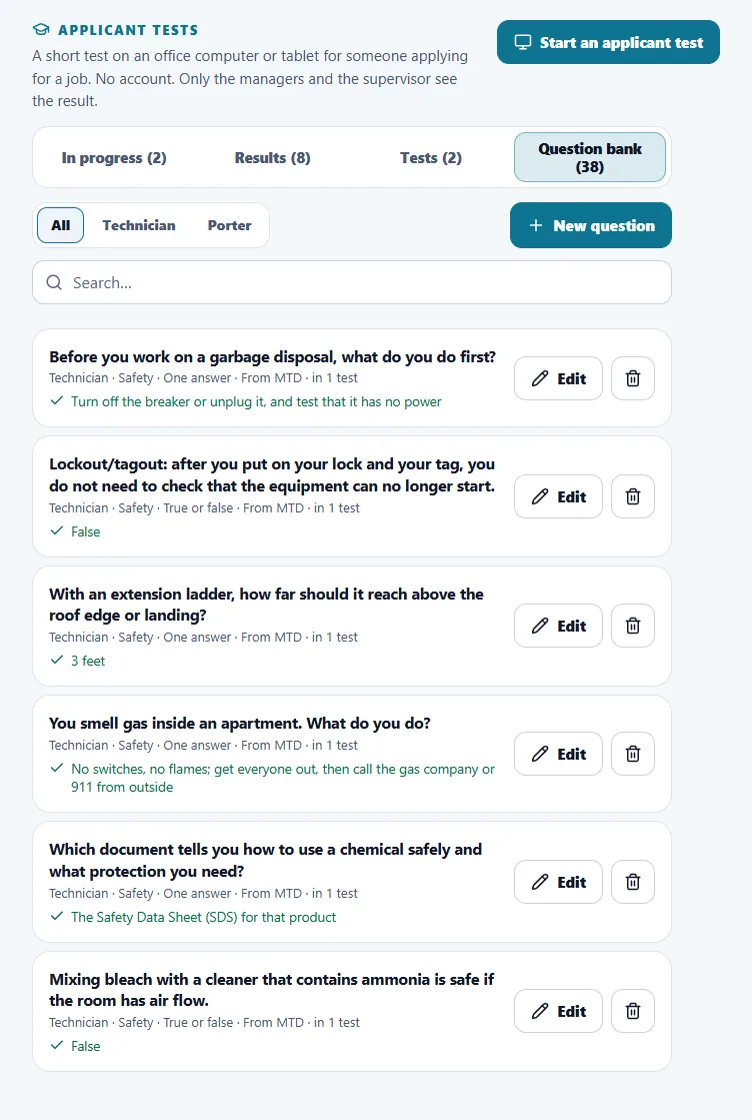
People who may create tests see two more tabs. Tests lists the tests: tap New test, give it a name, a position, a time in minutes, a pass mark in percent and up to 50 questions. Question bank holds the questions: the starter questions from MTD and your own. A question can have one answer, be true or false, or be an open answer, and it is written in English and in Spanish. Retiring a test keeps its results.
A test before hiring must measure things of the job and be the same for everyone who applies for the same position. Do not ask about age, health, religion, origin, pregnancy or other personal data. If someone needs an accommodation, such as more time, the company must consider it.
Tips
Change the questions every few months. The results show the version of the test, so you always know which one an applicant took.
When the module is turned off
The Training tile disappears, no test can be started and the server answers that Training is turned off for the workspace. Turning a module off hides it and keeps its data.
Related guides
Ready to try it with your own property?
Create your workspace, add your property and turn on the modules you need.