Staff tab and recognitions
Residents can thank a worker of their property, or tell the office about a problem, from the Staff tab of their portal. The property manager reads it and can share the praise with the worker, who finds it next to their trophies.
- Who sees it
- The resident writes it. The property manager and the leaders of the company read it with the resident's name and apartment. The worker only sees what the property manager shares, as "A resident".
- Where to find it
- Residents: the Staff tab of the portal. Property manager: Staff comments under People. Worker: Recognition.
- What it needs
- This part is always part of the Resident portal. It has no switch of its own.
What it is for
A good job should reach the person who did it, and a real problem should reach the manager without an argument at the door. The Staff tab is a quiet channel for both. It is not for photos, files or long stories: a comment is up to 500 characters.
Send a comment as a resident
- Open the Staff tab
In the resident portal, tap Staff.
- Choose the person
Under Who is it about? pick a person who works at your property. The list shows the first name and the role, never contact details.
- Choose praise or complaint
Pick Praise or Complaint, then write a few words under Your message.
- Send
Tap Send. The comment appears under My comments as Sent. The resident never sees whether the office read it or shared it.
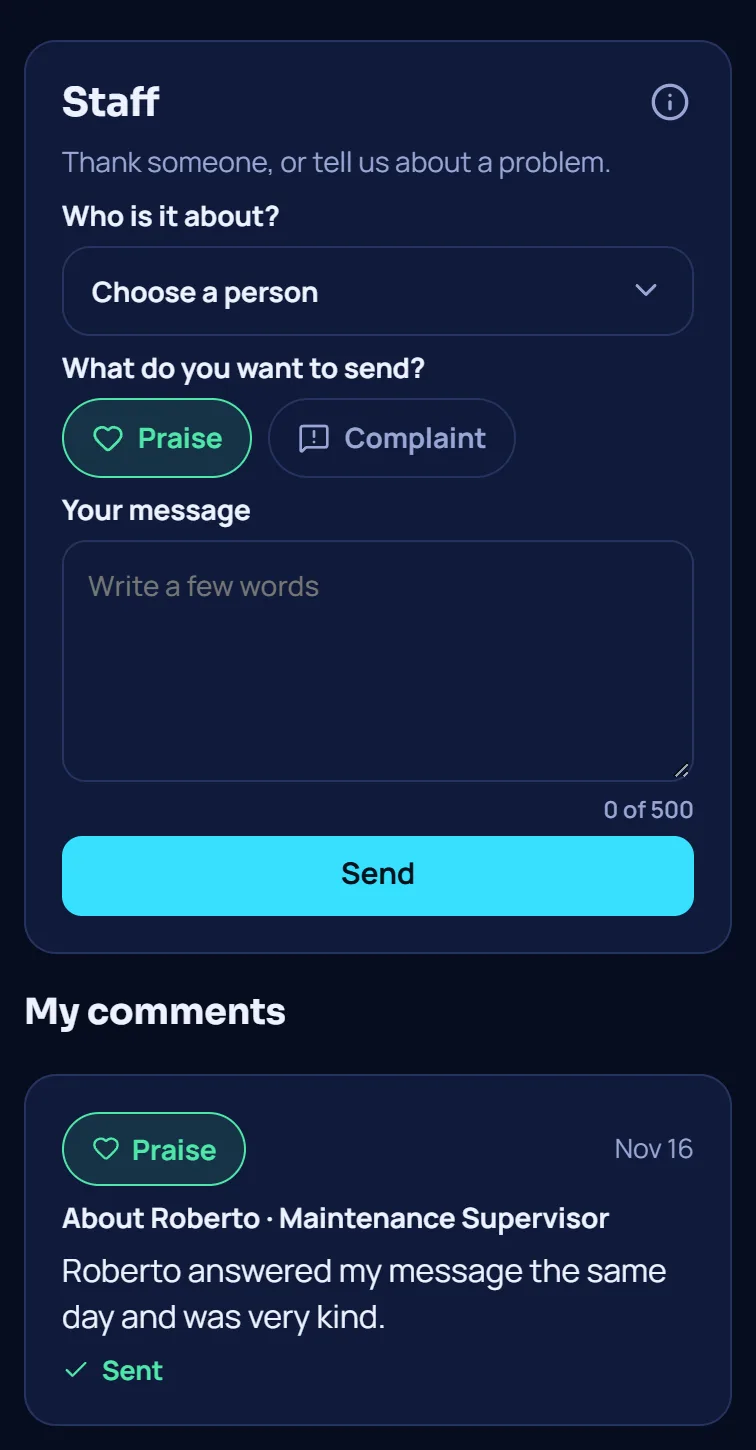
A resident can send up to 3 comments a day and 2 a week about the same person. A message with words that can offend is not accepted: the resident is asked to write it again with respect.
Read and share comments as the property manager
- Open Staff comments
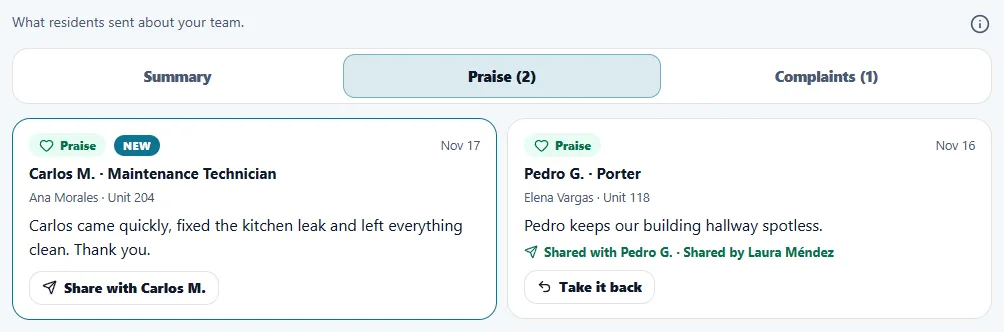
Use the Staff comments tile. A badge counts the new ones. Opening the window marks them as seen, and each new card keeps a New tag until you close it.
- Read by kind
Summary shows two counts, Praise and Complaints. Each card shows who it is about, the resident's name and apartment, and the text.
- Share it with the worker
Tap Share with and the worker's name. The window reminds you that the worker will see the text exactly as written, as "A resident", with no name or apartment. Check that the text has none, then tap Share.
- Take it back
A shared comment shows who shared it. Take it back removes it from the worker's view.
A comment about a property manager goes only to the leaders of the company, never to the property manager. A comment cannot be shared when the person is no longer on the team or is now a property manager.
What the worker sees
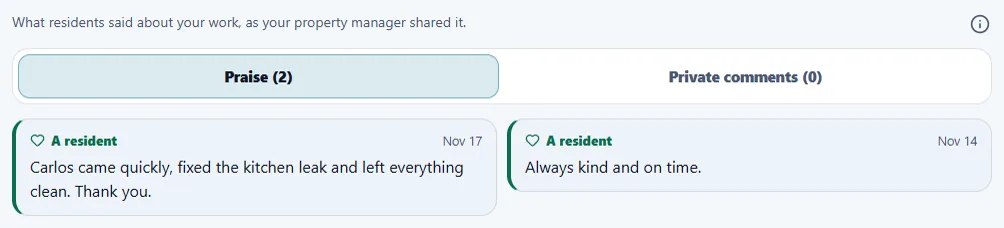
The worker opens Recognition. Praise that the property manager shared shows there and in the profile, next to the trophies and medals. A shared complaint goes to Private comments, a part only that worker can open. It is never shown next to awards. The worker never sees who wrote anything.
What leaders see
The leaders of the company have a read-only Staff comments page with every comment about the team of a property, with filters All, Praise, Complaints and About a property manager. It shows whether a comment was shared with the worker. It changes nothing.
Tips
Share praise soon: it is the easiest way to say thank you. Before sharing, read the text once more, because the worker sees it word for word.
When the module is turned off
The Staff tab belongs to the Resident portal. When that module is off, the tab and the Staff comments tile disappear, a resident who tries gets "This is not available right now. Please call your property office.", and the leaders' page says there is nothing to show. The comments already sent are kept.
Related guides
Ready to try it with your own property?
Create your workspace, add your property and turn on the modules you need.