Monthly goals and report
Monthly goals give your team a clear target for each month, such as 120 completed work orders. Many goals count themselves from the work in the app, and the monthly report sums the month up and goes to corporate by email.
- Who sees it
- The owner, the manager, the property manager and the assistant property manager set the goals and see the monthly report. Everyone else on the team sees the goals of the month and can update only the goals they were chosen for.
- Where to find it
- The Monthly goals tile on the home screen.
- What it needs
- The Monthly goals & report switch in Modules.
What it is for
A goal has a team, a name, a target and a way to measure it. The window shows each goal with a progress bar, This month and Last month in two tabs, and a line that tells you when the report goes out.
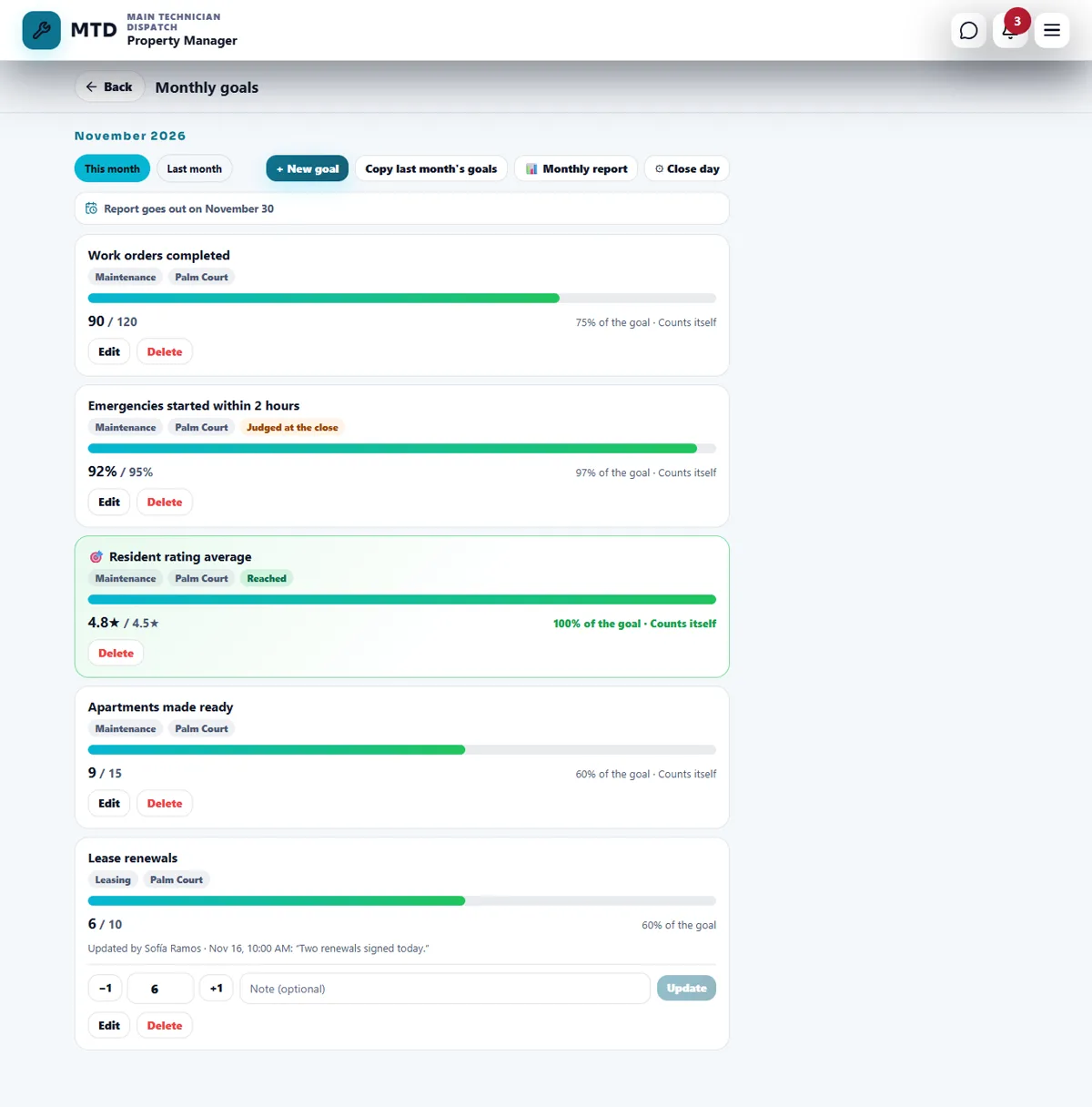
Set a goal (office)
- Start a new goal
Open Monthly goals and tap + New goal. Choose the Team: Maintenance, Leasing, Rent & accounting, Everyone or One person. If you have several properties, choose one or All properties.
- Pick a suggestion or write your own
Under Start from a suggestion choose one, or tap + Custom. The suggestions with a small lightning mark count themselves. Write the goal and the Target.
- Choose how it is measured
In How it is measured choose an automatic measure, or I update it by hand. For a hand-updated goal you also choose the unit (Number, Money ($), Percent (%), Days or Stars), whether the goal is At least or At most, and Who updates it by hand (managers can always, and up to 10 more people).
- Save
Tap Save. At the start of a month, Copy last month’s goals brings the goals of the month before so you do not start from zero. Edit and Delete are on each goal until the month is closed.
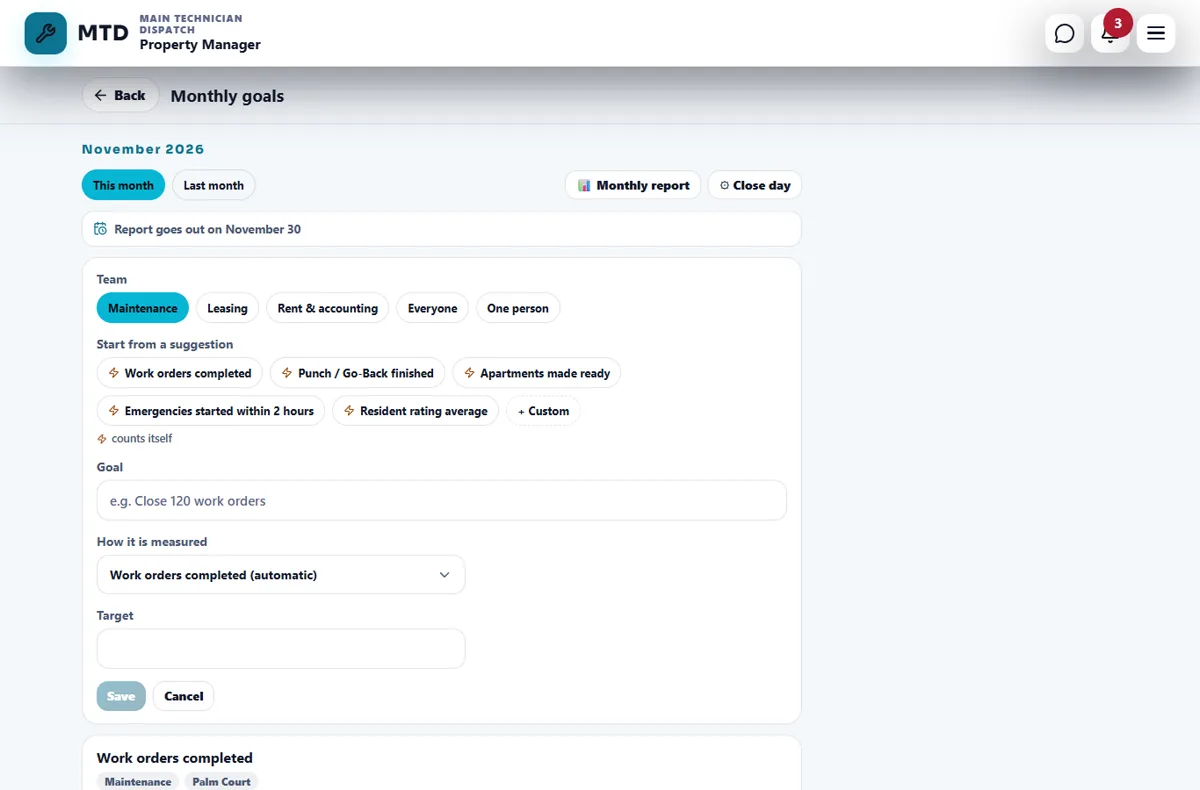
Goals that count themselves
These measures come from the work already in the app, so nobody types a number:
- Work orders completed, Punch / Go-Back finished and Apartments made ready.
- % of emergencies started in time, with the number of hours you choose (2 by default).
- Resident rating average, New residents (move-ins), Move-outs and Charges to residents billed.
Each measure is offered only for the teams it fits, and a goal for One person uses the ones that can be credited to a single person. Other numbers, such as lease renewals, tours or rent collected, are not in the app, so those goals are updated by hand: the people you choose type the progress, with an optional note, and tap Update. Every update shows who made it and when.
How a goal is judged
- Goals of the type “at least” with a number or an amount are reached as soon as the number gets there.
- Goals in percent, in stars or in days, goals of the type “at most” and the emergency goal are judged when the month closes. They show Judged at the close until then, and Reached or Not reached after.
- When a goal is reached, each person of that team gets a notification and 25 points, once.
The monthly report and the close day
- Choose the close day
The property manager level taps Close day and chooses, for each property, the last day of the month or a day from 1 to 10 of the next month. Through the close day you can still enter last month’s numbers in the Last month tab.
- The report goes out
The next morning at 8 AM corporate gets the monthly report by email. If someone corrects a number after that, corporate gets a “Report updated” email.
- Read it in the app
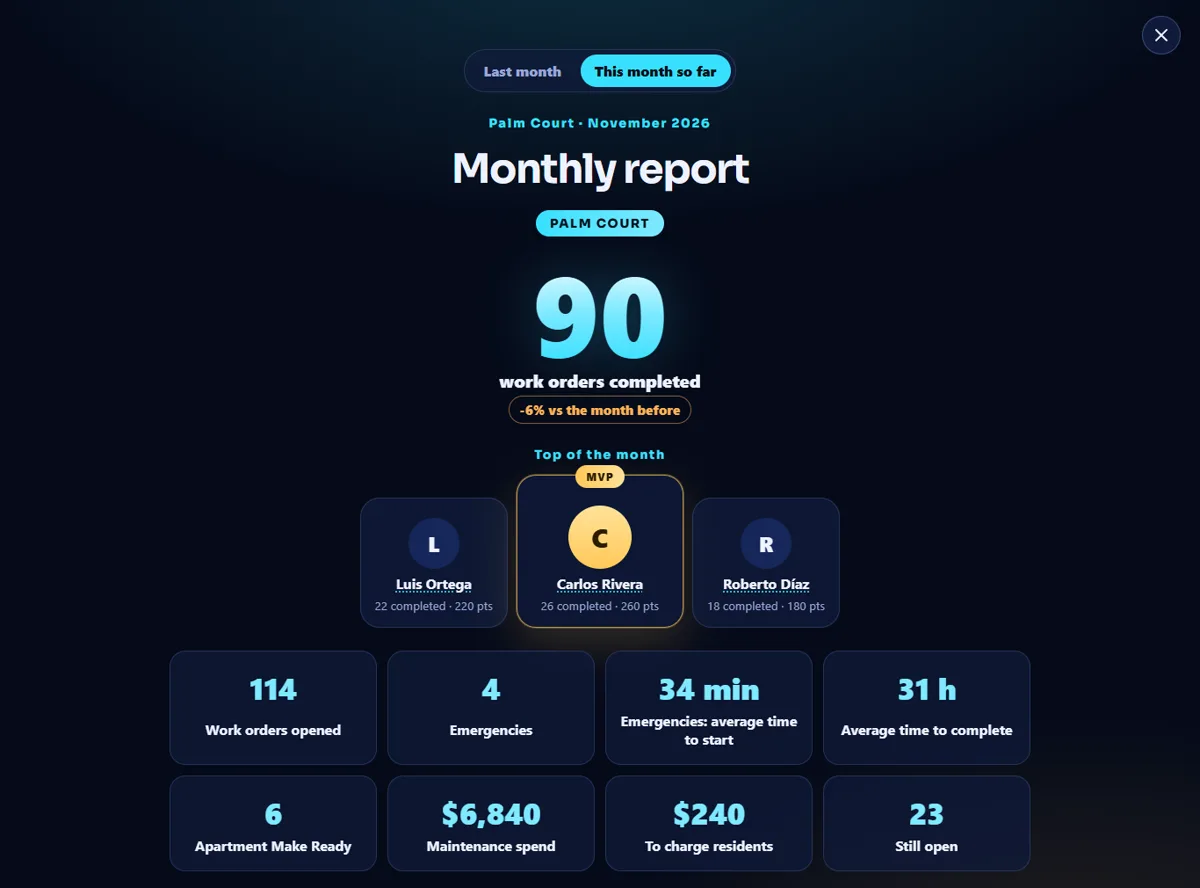
Tap Monthly report to see the same report in the app: the work orders completed, the top of the month, work orders opened, emergencies and how fast they started, average time to complete, Make Ready, maintenance spend, what is left to charge residents, what is still open and the goals of the month. It also opens by itself once after a month closes.
Tips
Start with two or three goals that count themselves, so you spend no time on numbers. Add a hand-updated goal only for something you really follow, and choose who updates it.
When the module is turned off
With Monthly goals & report off, the Monthly goals tile and the monthly report are turned off, and so is the report that opens by itself after a month closes. Your goals and their history are kept and come back when you turn the switch on.
Related guides
Ready to try it with your own property?
Create your workspace, add your property and turn on the modules you need.