Start here: Maintenance supervisor
The maintenance supervisor runs the field team. You hand out the work, keep Make Ready moving, cover emergencies and keep an eye on your team's hours.
- Who sees it
- The Maintenance Supervisor. Technicians and porters work on the same app with a simpler home screen.
- Where to find it
- Your home screen after you sign in, on the phone or the computer.
- What it needs
- A Property Manager who has invited you and approved your position.
What you see on your home screen
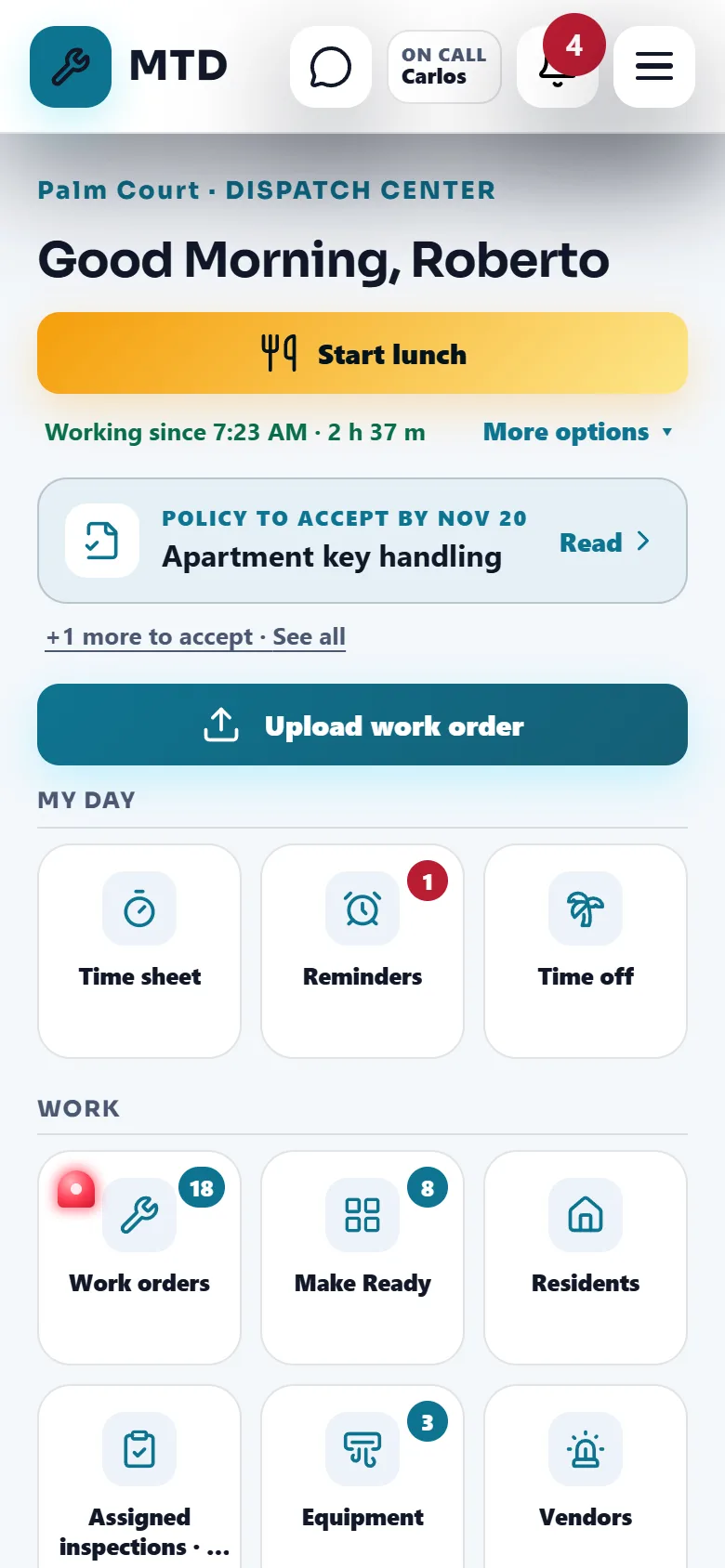
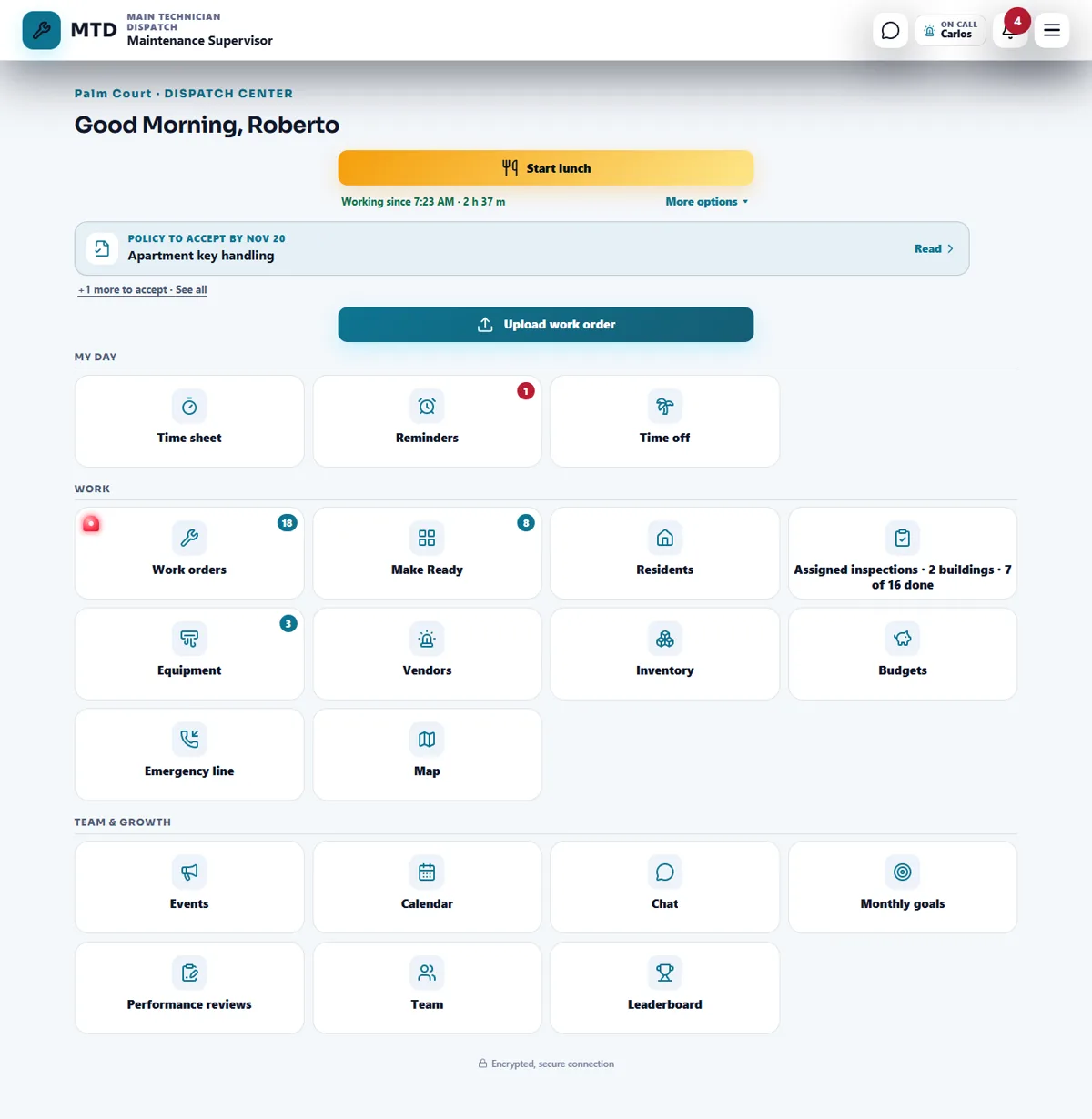
At the top are your Clock in bar, any company policy you still have to accept, and the Upload work order button. A small On call chip next to the bell names who covers emergencies right now. Your tiles come in three groups.
- My day: Time sheet, Reminders and Time off.
- Work: Work orders, Make Ready, Residents, Assigned inspections, Equipment, Vendors, Inventory, Budgets, Emergency line and Map.
- Team & growth: Events, Calendar, Chat, Monthly goals, Performance reviews, Team and Leaderboard.
Tiles show only when their module is on. The red siren on the Work orders tile means an emergency is open.
What you can do, and what you cannot
While the property has an active maintenance supervisor, these jobs are yours: assigning work to technicians and porters, setting the on-call turns, keeping the standard Punch list, drawing the map zones and icons, running the Make Ready board, and fixing, authorizing and scheduling the time of technicians and porters. The Property Manager and the office see them without changing them.
You do not decide time off, see resident complaints, switch modules on or off, or give people permissions. You see the maintenance budget, not every budget.
Your first 5 things
- Clock in and read the policies
Tap Clock in when you start your day. If a policy is waiting, tap Read and accept it.
- Set who is on call
Open Emergency line, then On call. Pick who covers this week or set a rotation. Only the supervisor, technicians and porters can be on call. This is also where you check the list of what counts as an emergency.
- Assign your open work
Open Work orders. Open work has nobody yet; assign it to a technician or a porter. Emergencies stay at the top of the list.
- Open the Make Ready board
Open Make Ready to see every apartment you are turning, with its Punch and Go-Back work. Move each one along as the work gets done.
- Check your team's hours
Open Time sheet and its team view to see who is on the clock. Fix a missing clock-out or answer a time correction there.
Your daily routine
- Morning: clock in, look at the Open count in Work orders and give each job to someone. To send many jobs at once, use the Stack view: drag the jobs to each technician's box, then press Assign. Each person gets all their jobs together, with one notice.
- During the day: watch the red siren for emergencies, answer the Residents tile and follow Make Ready.
- Before you leave: check what is still pending and why, and look for missing clock-outs in the time sheet.
Emergencies ring right away for the person who gets them, even when you assign in a batch.
Guides to read next
Ready to try it with your own property?
Create your workspace, add your property and turn on the modules you need.