Integrations
Integrations is where your company connects Main Technician Dispatch to the systems around it. Today it holds two cards: one for your property management system and one for payroll, where the approved hours leave as a file.
- Who sees it
- The Property Manager sees both cards. The assistant Property Manager also sees the property management card. Nobody else sees them.
- Where to find it
- Profile, then My workspace. The cards are called Connect your management system and Payroll connection.
- What it needs
- The Integrations module turned on for the property system card. The Time clock turned on for the payroll card.
What it is for
The two cards keep every outside link in one place, behind the Property Manager, with the same safety. A key stored here is encrypted on the server, nobody can read it again, not even from this screen, and every change is recorded.
The direct connection with a property management system does not work today: the card in the app says so, and it does not bring in or close work orders. Nothing is sent to your payroll provider by itself either. The approved hours reach payroll as a file that you download and load by hand.
The property management card
- Open the card
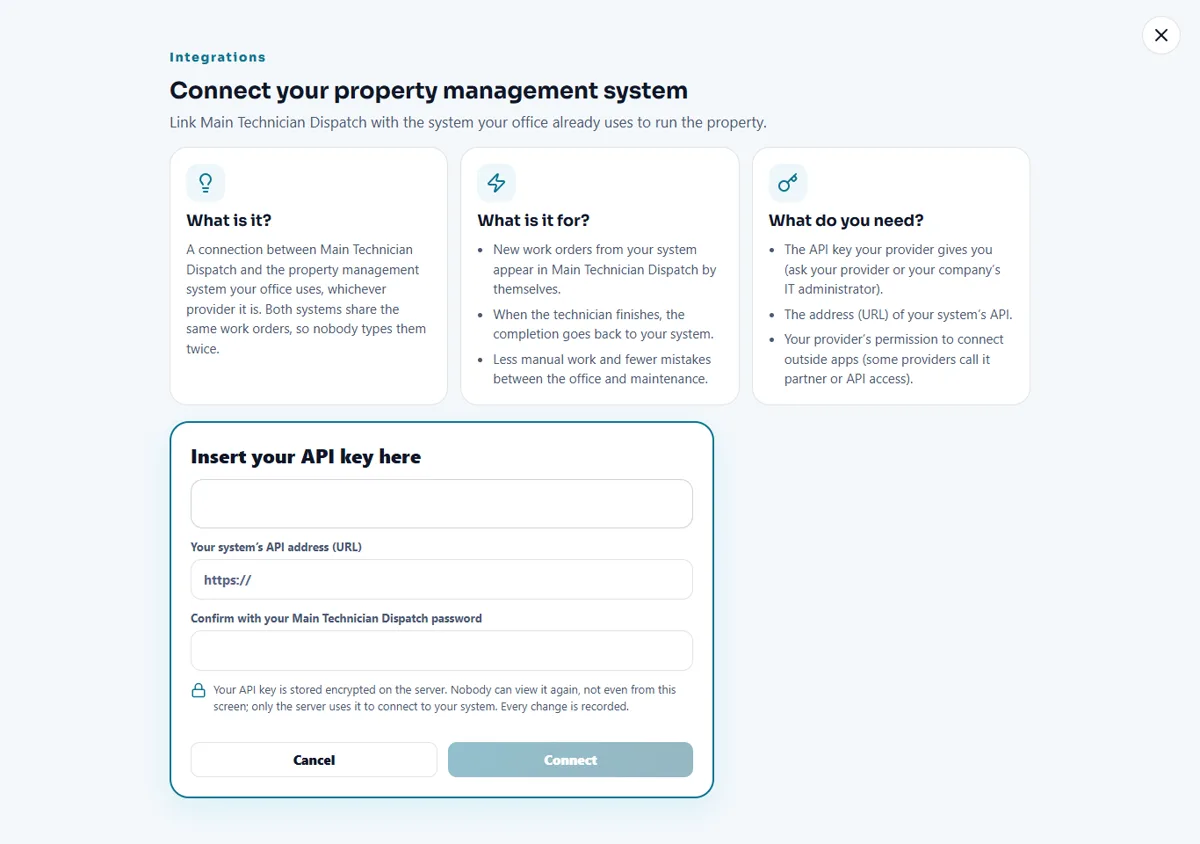
Go to Profile, then My workspace. Find Connect your management system and tap See details.
- Read what you need
The window explains what the connection is, what it is for, and what you need: the key your provider gives you (ask your provider or your company's IT administrator), the address of your system, and your provider's permission to connect outside apps.
- Look at the boxes
Under the three cards the window has a box for the key, a box for the address of your system and a box for your Main Technician Dispatch password (or a fingerprint check in its place, if fingerprint sign-in is on), with a Cancel button and a Connect button. Cancel closes the window. The Connect button is dimmed, so it cannot be tapped and nothing you type is sent.
- Erase a saved key when you want
If a key was saved earlier, the window shows its status and a Disconnect button. Tap Disconnect, then Erase key. The app asks you to confirm with your PIN and your fingerprint: either with fingerprint sign-in on your phone, or by typing your password and then confirming a link we e-mail to you with your fingerprint. A right password alone is not enough, so turn on fingerprint sign-in first (Profile, Settings, Security). The key is erased from the server when the confirmation finishes. You can do this at any time, even with the module off.
The payroll card
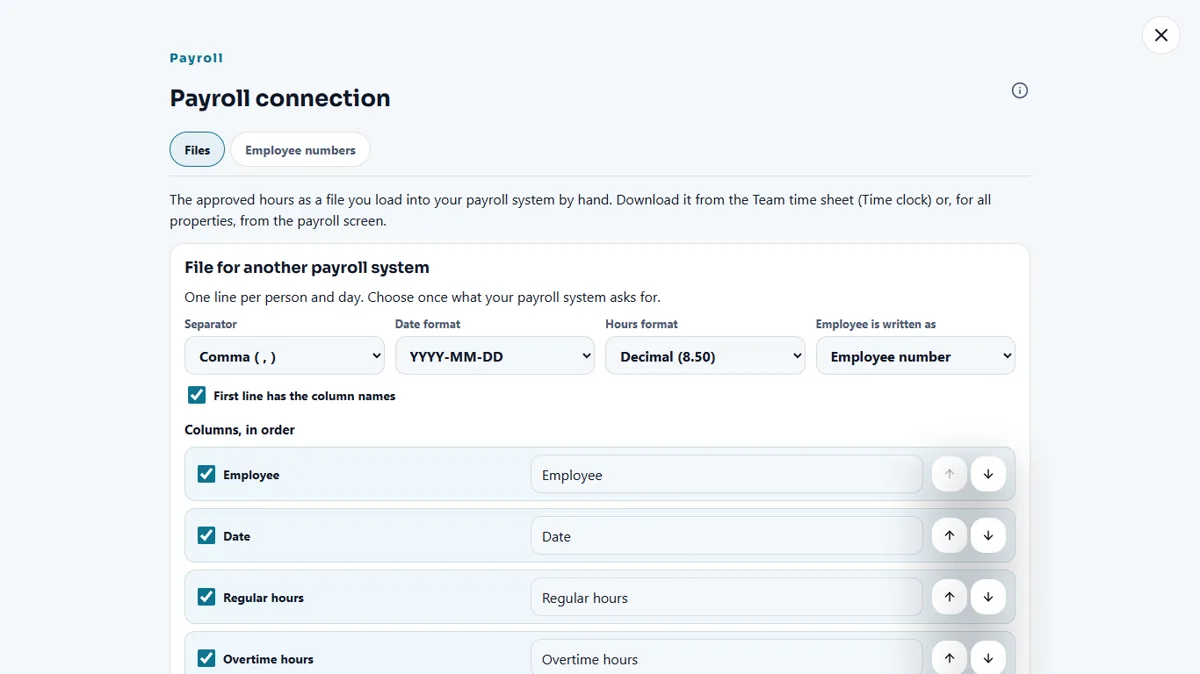
Payroll connection has two tabs for the Property Manager. It needs the Time clock, because the hours come from it.
- Set up the file once
On the Files tab, under File for another payroll system, choose the Separator, the Date format, the Hours format (decimal like 8.50, or hours and minutes like 8:30), how the employee is written (Employee number or Name) and whether the first line has the column names. Tick the columns you need, in order, and rename them if your system asks for other names. Tap Save file setup.
- Write the employee numbers
On the Employee numbers tab, write next to each person the number your payroll system uses for them. Tap Save numbers. Two people cannot have the same number.
- Download the file
From the Team time sheet, or for all properties from the Payroll portal, tap File for another system. Only people whose pay period is approved go in. People with no employee number are left out and named, and you can download without them.
- Load it in your payroll system
Load the file by hand. Main Technician Dispatch sends nothing to your payroll provider.
Tips
Ask your payroll provider for the layout of its import file before you set up the columns, and keep the employee numbers current when someone joins. People who left or moved stay in the list while they still have hours in this pay period or the one before, so their last paycheck has a number.
When the module is turned off
With Integrations off, the app does not use a saved key, but the key stays stored. The card then shows only Disconnect, so you can erase it. With the Time clock off, the payroll tools are off too, and the payroll card appears only while something is still saved, so it can be deleted. Your file setup and employee numbers are kept.
Related guides
Ready to try it with your own property?
Create your workspace, add your property and turn on the modules you need.