Start here: IT admin
The IT Admin looks after access and security for every property of the company: who can get in, how safely they sign in, the company sign-in rules and a copy of the company's data. You can also look at the daily work, read only.
- Who sees it
- The IT Admin of a company. Up to 3 IT Admins can be appointed.
- Where to find it
- The Security & access screen you land on after you sign in. An IT Admin has a separate account and is not a member of a property team.
- What it needs
- An invitation by email from the company's owner or a manager. An owner or a manager then approves you in Team (another one, if the person who invited you cannot approve their own invitation).
What you see
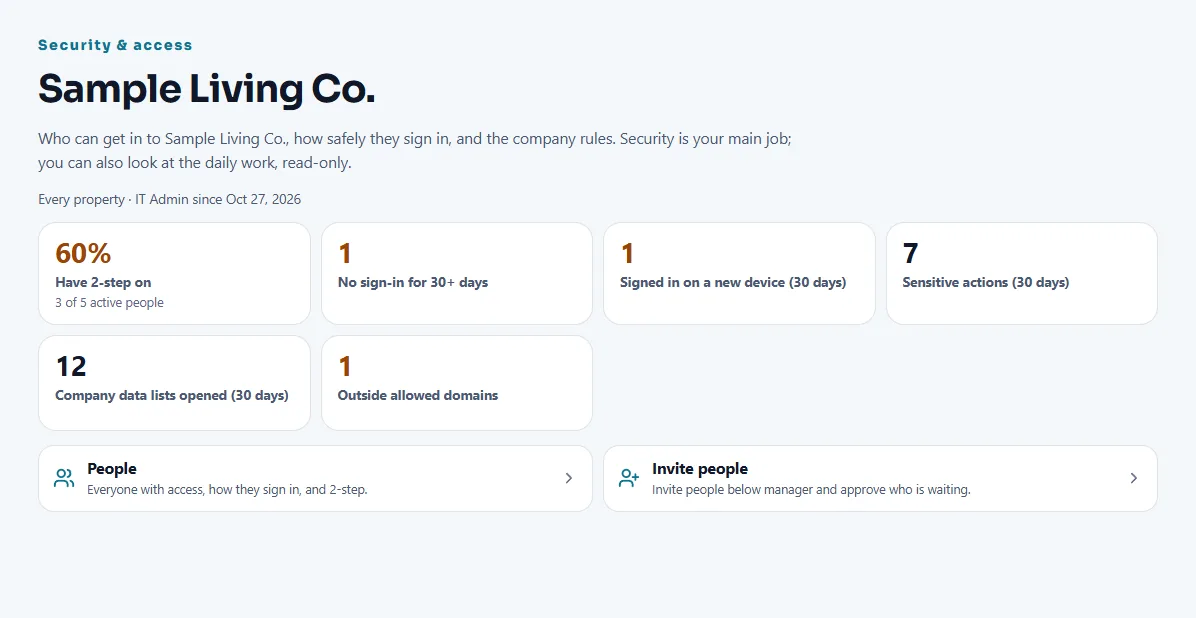
The Security & access screen opens with the company name and six numbers: the share of active people who have 2-step on, people with no sign-in for 30 days or more, sign-ins on a new device in the last 30 days, sensitive actions, company data lists opened, and people outside the allowed email domains. Below are six cards: People, Invite people, Sensitive actions, Company rules, Connections and Data. A last card, Company data, opens work orders, residents, time sheets, inventory, vendors and more, read only.
Your first 5 things
- Accept the invitation
Open the email invitation, create your own account and set up 2-step sign-in. An owner or a manager of the company approves you in Team before you get in.
- Read the six numbers
Start with Have 2-step on and No sign-in for 30+ days. They tell you where access needs attention.
- Open People
See everyone with access and how they sign in. You can remove a person's access, and reset 2-step for someone who lost their phone, except for Property Managers.
- Set the company rules
Open Company rules to require 2-step for everyone and to allow only your company's email domains. Every change is recorded.
- Check Connections and Data
Under Connections you see the connection with the property system and the emergency phone lines. Under Data you can download a copy of all the company's data.
What you can and cannot do
- You can see everyone's access and sign-in methods, remove access, set company rules, look at the daily work read only, download a copy of the company data, and invite and approve people below the manager level.
- You cannot change anything in the daily work, see door or gate codes, keys, PINs or private chats, change anyone's role, or invite owners, managers or other IT Admins.
Each time you open a company data list, download a copy or invite someone, it is written in the history of sensitive actions. The owners and managers can read that history, and they are emailed when you invite a Property Manager.
Your routine
- Each week: open the six numbers and look at anyone who has not set up 2-step or has not signed in for 30 days.
- When someone leaves: remove their access in People. A Property Manager can give it back later.
- Each month: read Sensitive actions: role changes, removals, resets, rules and exports.
The security page lists what protects sign-in, company data and stored connection keys, with links to the privacy policy and the subprocessors.
Guides to read next
Ready to try it with your own property?
Create your workspace, add your property and turn on the modules you need.