IT admin panel
The IT Admin panel, called Security & access, is made for the person who looks after the safety of a whole company in the app. It shows who can get in, how safely they sign in, and the company rules. Daily work can be looked at, but never changed.
- Who sees it
- An IT Admin: a separate account that is not a member of the team and covers every property of the company. The owner or a manager invites it, and up to three can be active.
- Where to find it
- The IT Admin signs in and lands on Security & access. Owners and managers manage IT Admins in Team, then Delegate access, then the IT Admin tab.
- What it needs
- 2-step sign-in and a PIN. Every action that changes something asks for the PIN, and the owners and managers are emailed.
What it is for
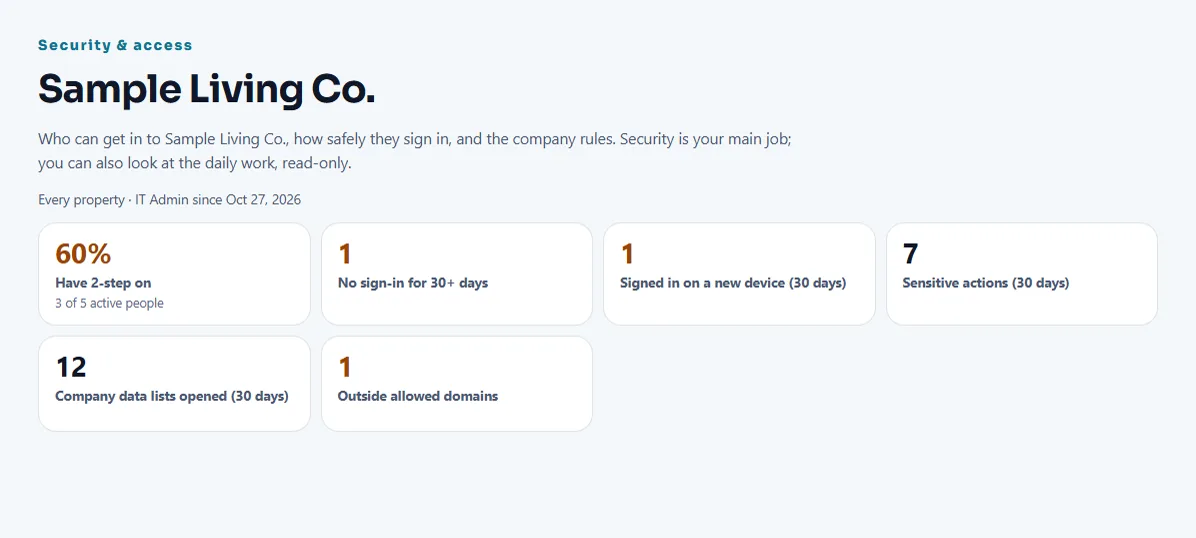
A company's IT head can check how safe access is without being given the daily tools. The first screen counts what matters: how many active people have 2-step on, who has not signed in for 30 days, who signed in on a new device, how many sensitive actions happened, and how many people have an email outside the allowed domains.
Look at who has access
- Open People
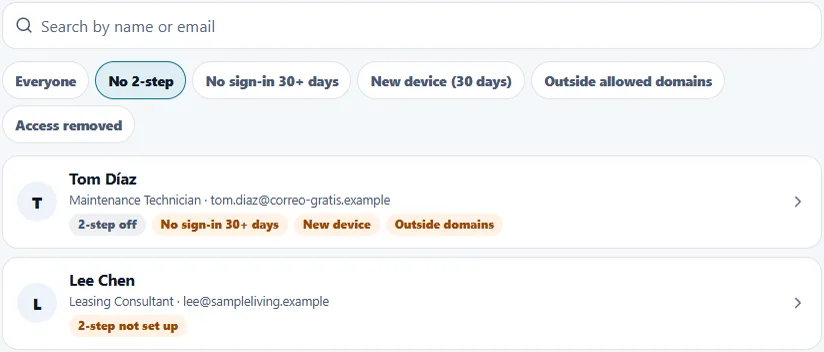
The list shows everyone with access and how they sign in. Use Search by name or email, or the filters: Everyone, No 2-step, No sign-in 30+ days, New device (30 days), Outside allowed domains and Access removed.
- Open a person
You see the last sign-in, the ways to sign in, the devices and the recent sensitive actions of that person.
- Reset 2-step for a lost phone
Tap Reset 2-step and enter your PIN. The authenticator app and fingerprint sign-in of that person are removed, they are signed out everywhere, and they get a 6-digit code by email to set up 2-step again. IT does not reset Property Managers: the person above them does.
- Remove access
Tap Remove access, write a required reason and enter your PIN. The person loses access to every property and is signed out on all devices right away. Their open work orders go back to the queue. A Property Manager can give access back later.
Set the company rules and download a copy
- Company rules
Turn on 2-step for everyone, so technicians need it too, and choose the email domains allowed to join. Each change needs a reason and your PIN, is kept in the History, and the owners and managers are emailed.
- Invite people below manager
Under Invite people, invite Property Managers, assistants, supervisors, leasing staff and technicians. Owners, managers and other IT Admins are invited by the owner or a manager. A person invited to the Property Manager level is approved by the owner or a manager in Team, so two people are always involved.
- Read Sensitive actions
This list shows role changes, removals, resets, rules, downloads and the company data IT looked at, newest first.
- Download a copy
Under Data, Download a copy prepares a file with the company records, and a second file with the sensitive actions. The owners and managers are emailed right away.
What an IT Admin can and cannot do
- Can
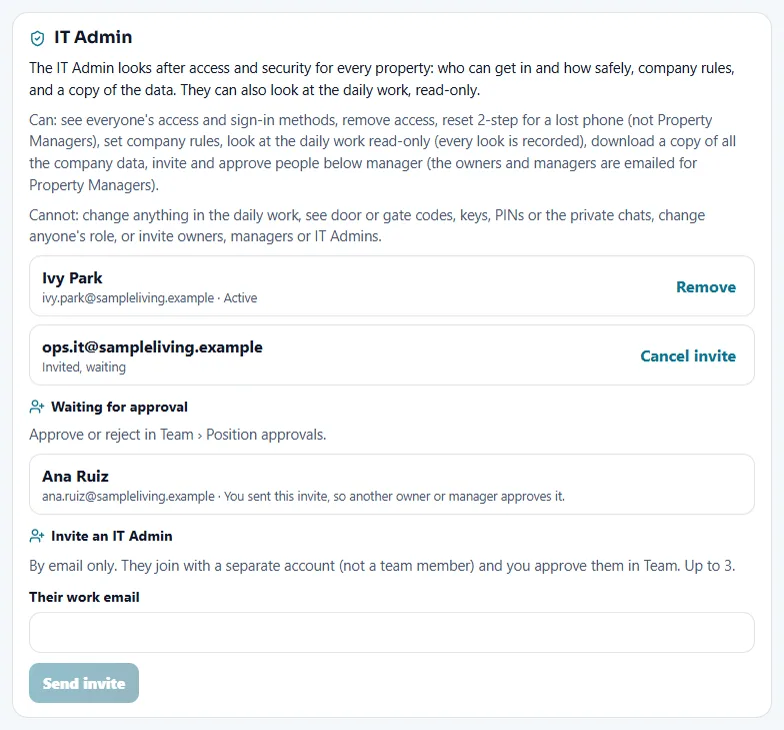
See everyone's access and sign-in methods, remove access, reset 2-step for a lost phone (not Property Managers), set company rules, look at the daily work read-only (every look is recorded), download a copy of the company data, and invite and approve people below manager.
- Cannot
Change anything in the daily work, see door or gate codes, keys, PINs or the private chats, change anyone's role, or invite owners, managers or IT Admins.
- Company data is read-only
The Company data lists (work orders, residents, time sheets, inventory, vendors and more) never change a record. Opening many pages in a short time, or too many in a day, pauses the lists.
Manage the IT Admins
Owners and managers do this in Team, Delegate access, IT Admin tab.
- Invite an IT Admin
Under Invite an IT Admin, write their work email and tap Send invite. It is by email only, and they join with a separate account.
- Approve the request
When it arrives, approve or reject it in Team, under Position approvals. If you sent the invite yourself, another owner or manager approves it.
- Watch what IT did
The tab lists what IT looked at and did in the last 30 days: the data lists opened, downloads, invites and decisions.
- Remove or restore
Tap Remove to end an IT Admin. For a person whose access IT removed, a Property Manager taps Give access back.
Tips
Start with the counter No 2-step, then Outside allowed domains. For the full list of protections, read Security for IT teams. If you send the page to your security reviewer, send that one.
When the module is turned off
The IT Admin panel has no switch. Turning other modules off hides only those parts of the app. The IT Admin still sees the access, the rules and the History, and the company data lists stay read-only.
Related guides
Ready to try it with your own property?
Create your workspace, add your property and turn on the modules you need.