Make Ready
Make Ready is one board for every vacant apartment you are turning, so everybody sees what is left before it can be rented.
- Who sees it
- The maintenance supervisor runs the board. The property manager, the assistant, the leasing manager, the owner and the manager see every apartment and box. With no active supervisor, the property manager runs it. Technicians do their part from My work.
- Where to find it
- The Make Ready tile on the home screen. The number on the tile counts the apartments on the board.
- What it needs
- The Make Ready switch in Modules. Handing over to a resident also needs the resident portal.
Make Ready always means an empty apartment. An apartment with a resident cannot be on the board, and a resident and a Make Ready never exist for the same apartment at the same time.
Read the board
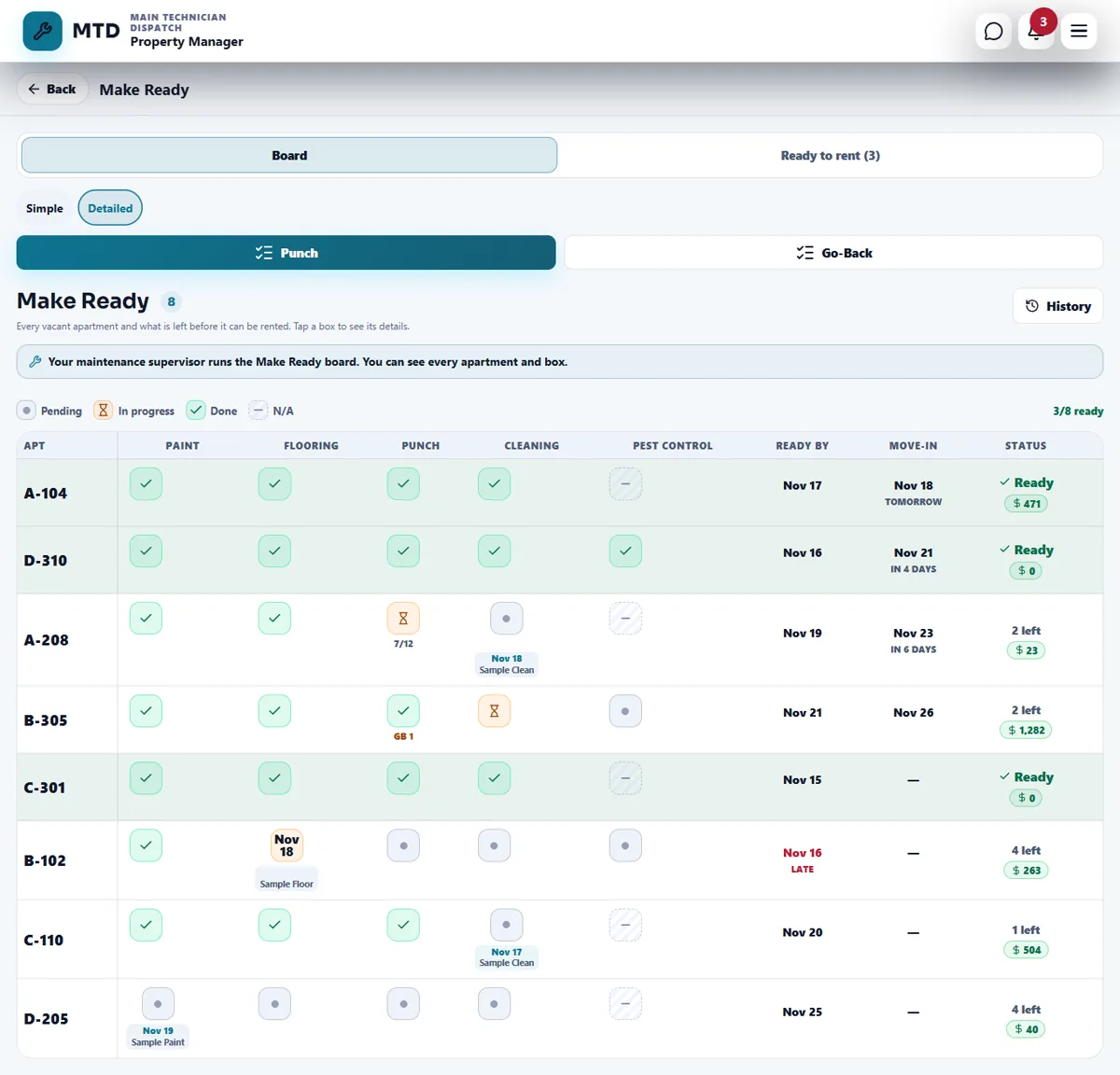
The Board tab has two views, Simple and Detailed. Your choice is remembered on that device.
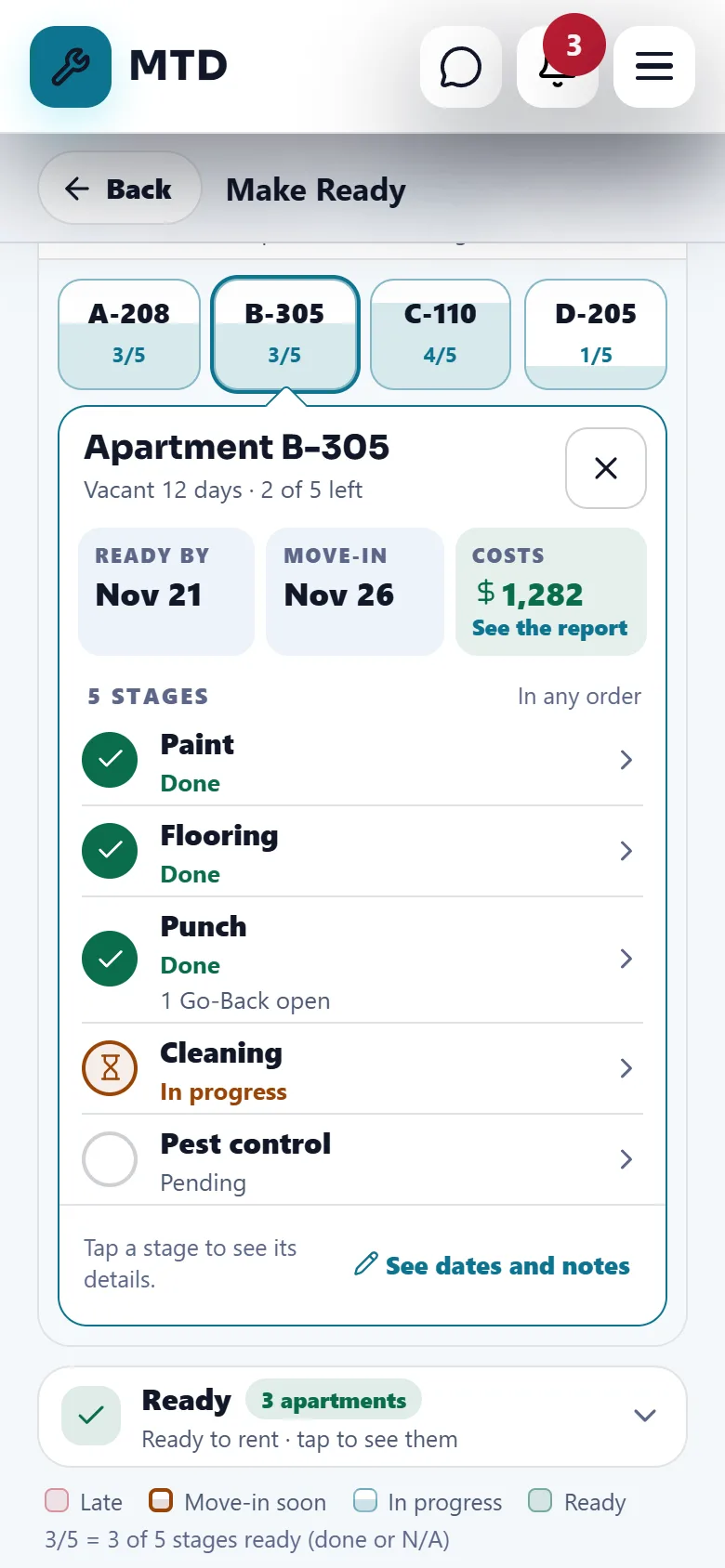
- Simple groups the apartments: Late (the ready-by date has passed), Move-in soon (the resident moves in within 3 days), In progress (on time) and Ready. Each tile shows the apartment and its stages ready, for example 3/5 = 3 of 5 stages ready (done or N/A). Tap a tile to open the apartment.
- Detailed is a table: apartments down the left, the five stages across (Paint, Flooring, Punch, Cleaning, Pest control), then Ready by, Move-in and Status with the cost so far. Each box is Pending, In progress, Done or N/A.
- History opens the history of an apartment.
Add an apartment and set its dates
- Add the apartment
Choose Add apartment, or type the apartment number in an empty row of the Detailed board and press Enter. Choose the property if you have several. If the number does not exist yet, it is created. You can mark Needs pest control.
- Set the dates
Three dates guide the board: the Move-out date, Ready by and Move-in. After Ready by the apartment shows Late if it is not ready. With a move-in date close, it shows Move-in soon. In an apartment, tap Change dates (or See dates and notes when you can only read).
- Update each stage
Open the apartment and tap a stage to change its status. The stages can be done in any order. Add Notes when something needs saying, for example a carpet on order.
- Schedule a vendor
In a stage, choose the Day and Who does it (a vendor from your list or another name). With the Emergency vendors module on, you can send the person a private link. The vendor taps Start on arrival and Done at the end, so the box shows when they started, finished and how long it took. Sending someone else cancels the link of a vendor who has not started.
- Record the costs
Tap Costs to open Costs and report: vendor invoices by stage, every linked work order and every part replaced, with Print / PDF. You can mark an amount to charge the former resident for move-out damage.
Punch and Go-Back
Punch and Go-Back are work orders for the technician that update the board by themselves. In the Detailed view use Punch and Go-Back; in Simple they are under Other ways: Punch and Go-Back.
- Create a Punch
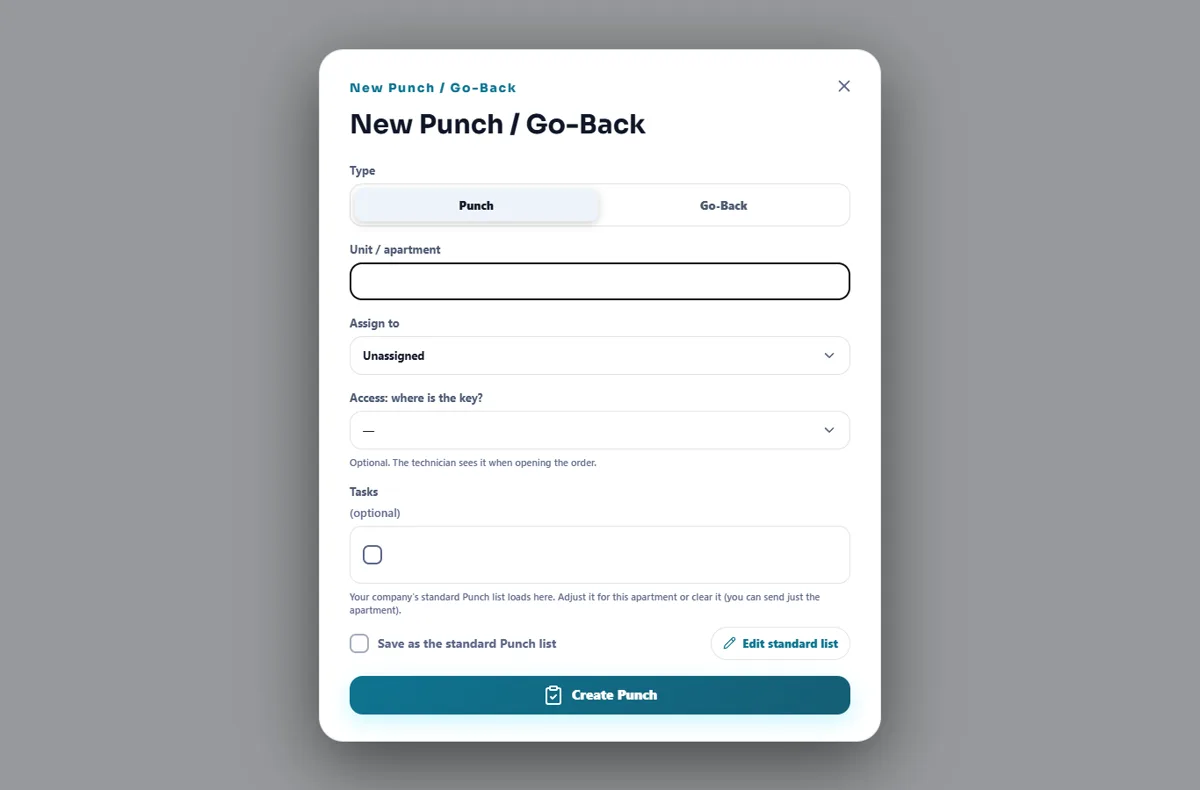
Choose Punch, type the apartment, Assign to a technician, say where the key is, and review the Tasks. Your company’s standard Punch list loads by itself: adjust it for this apartment, clear it, or tick Save as the standard Punch list. Tap Create Punch.
- The technician works the list
The technician finds Punch of A-208 in My work and checks off the list. The Punch column of the board follows it by itself, and you can still change it by hand.
- Review, then Go-Back
When the 1st phase is finished the supervisor checks the apartment: All good, no go-back or Needs a go-back, with an optional note of what to fix, then Create the Go-Back. The box is done when the Go-Back is finished, or when the review said none is needed. The board marks the phases 1/2, Review and 2/2.
Ready to rent and hand-over
- Ready to rent
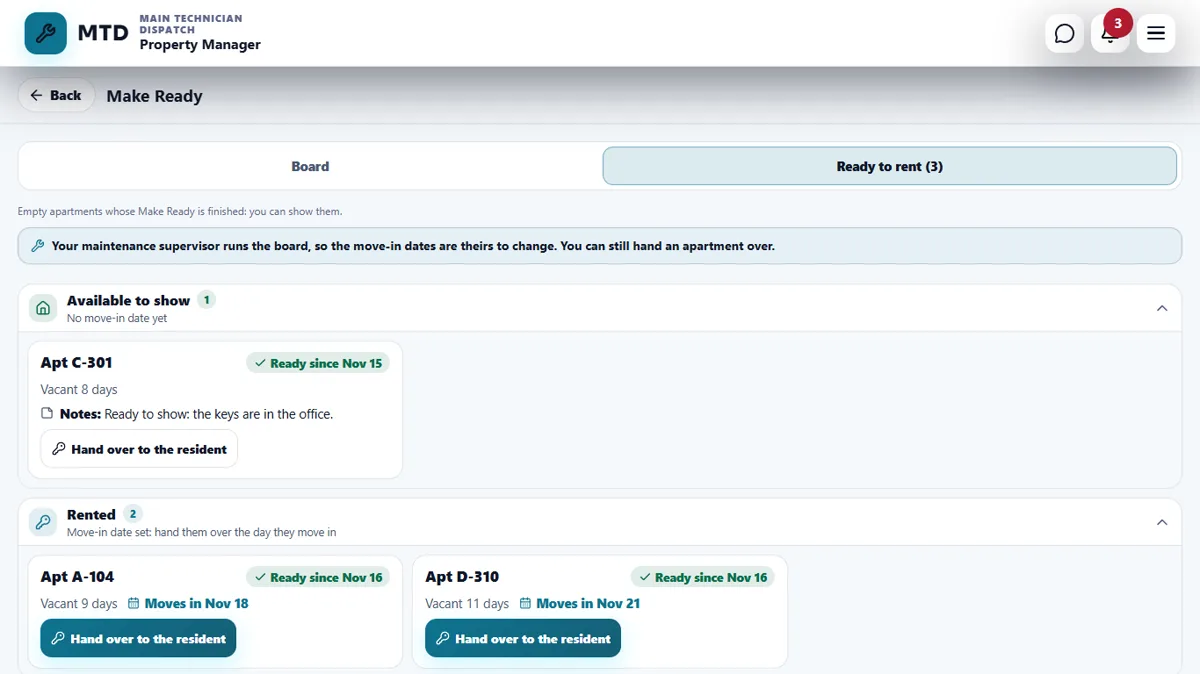
When all five stages are done (or N/A), the apartment appears in the Ready to rent tab: Available to show (no move-in date yet) and Rented (move-in date set). You can Mark rented, Change date or add notes. If an apartment is ready but still has an active resident, a line tells you to mark that resident as moved out first.
- Hand over
On the move-in day tap Hand over to the resident. It opens the form to add the resident for that apartment; saving it closes the Make Ready as handed over. Without the resident portal you get Hand over apartment, which closes it without adding a resident. Every hand-over keeps who did it and when, and Recently handed over lists the last 30 days.
Tips
Put the apartment on the board the day the resident gives notice, with the move-out date and a realistic Ready by. The grouping into Late, Move-in soon, In progress and Ready then tells you where to look first each morning.
When the module is turned off
With Make Ready off, the Make Ready board, Punch and Go-Back, Ready to rent, the vendor schedules and costs of Make Ready, the hand-over, and the Make Ready part of each apartment history are turned off. Apartments and their history stay on. What you saved is kept and comes back when you turn the switch on.
Related guides
Ready to try it with your own property?
Create your workspace, add your property and turn on the modules you need.