Emergencies
An emergency is a work order that cannot wait. The app puts it first, rings the right people with a siren, lets one person claim it, and asks the resident to confirm when the work is done.
- Who sees it
- The supervisor, technicians and porters hear the siren. The property manager, the assistant and the office see the emergency orders but hear nothing. Residents use the emergency button in their portal.
- Where to find it
- In Work orders, on the home screen strip, in My work, and in the resident portal.
- What it needs
- Nothing. This part is always on. The resident buttons need the resident portal, and the time sheet flag needs the time clock.
How an emergency looks and sounds
- An emergency order is red, has a small siren light and is first in the list, above High, Normal and Low.
- When an emergency is waiting (not started yet), the siren sounds once for each person on that device. Opening the app again does not repeat it. A new emergency that arrives while you are inside sounds it again. If sound is off in your notification settings, you only see the light.
- A technician or porter hears the siren only for emergencies assigned to them. A helper on the job hears the normal order sound. The supervisor hears every waiting emergency.
- The property manager, the assistant and the leasing office hear no siren. They see a red strip on the home screen: 1 emergency order is open, with See emergency orders.
Who gets alarmed and how to claim it
- The emergency arrives
A resident request marked as an emergency becomes an emergency order. The office can also set the priority to Emergency when it assigns an order.
- Nobody has it yet
The supervisors working today and the person on call get the notice Emergency, nobody on it, with the siren. If there are none, every technician and porter gets it.
- One person claims it
The notice opens a small card with only the apartment, the property, the kind of problem and a short title. Tap I’ll take it. The first tap gets it. Everyone else sees who already took it. Then tap Open the order.
- Accept it
On an emergency (and on High orders) assigned to you, tap Accept to tell the office you have it.
- No supervisor, no property manager
If the property has no active supervisor and no active property manager, the assistant, leasing team, owner and manager can assign an emergency order to a worker (never to themselves). The strip says so.
The person on call and the emergency phone line are in the On call guide.
What counts as an emergency, and the alert templates
Each property keeps its own list in the Emergency line window, under What counts as an emergency, with the tabs Summary, Emergencies and Can wait. Everyone on the team can read it. The maintenance supervisor and the property manager change it. Until a property saves its own list, a suggested list is used, and only its emergencies count. The resident button below answers from this list.
When the office sends an emergency-level alert to residents, it can start from quick templates: Fire, Missing child, Gas leak, Evacuation and Security, in English, Spanish or both. A template only fills the title and text: the office reads it, edits it and confirms before anything is sent. See Resident announcements.
The resident side
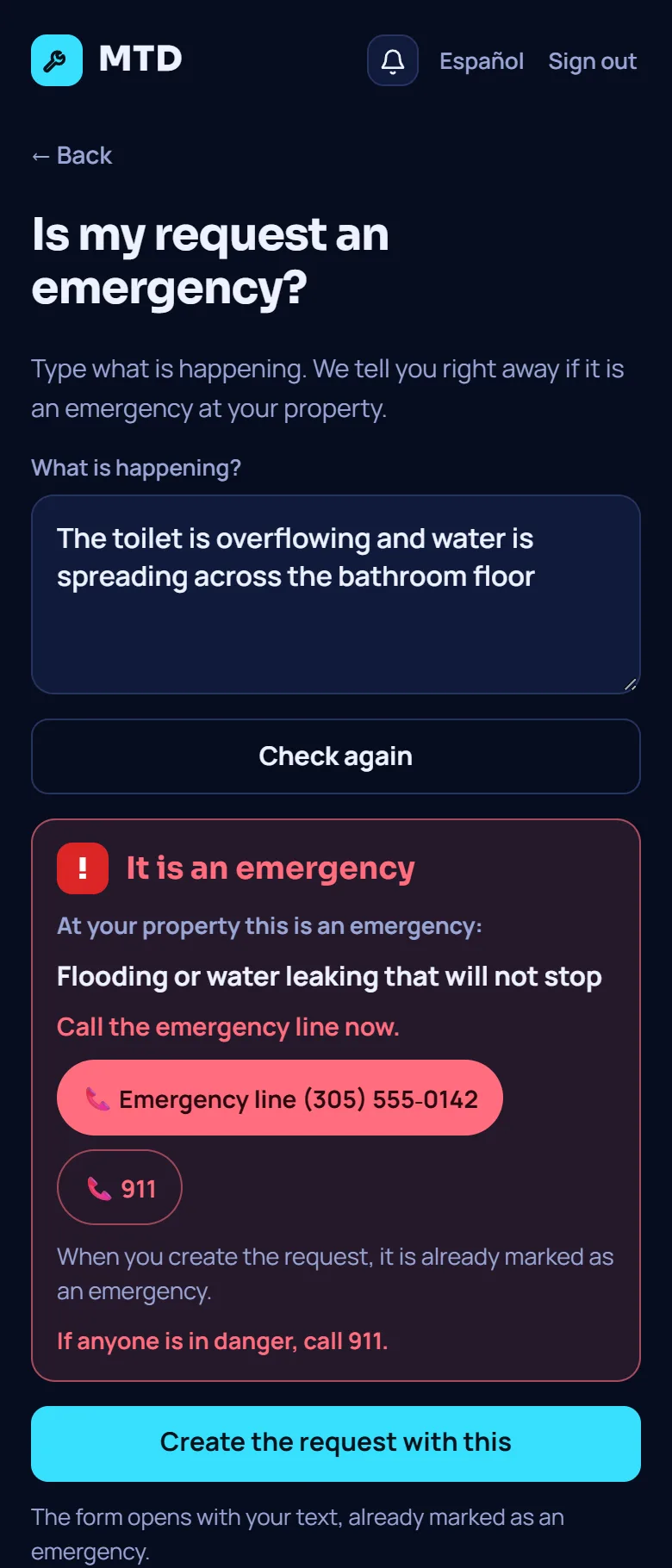
- Is my request an emergency?
On the portal home the resident taps Is my request an emergency?, types what is happening and taps Check. The answer comes at once, on the phone, from the property’s own list: It is an emergency, It does not look like an emergency, or We are not sure. Every answer includes “If anyone is in danger, call 911”. An emergency answer shows the emergency line and 911, and Create the request with this opens the request already marked as an emergency. Nothing the resident types leaves the phone while checking.
- Work completed
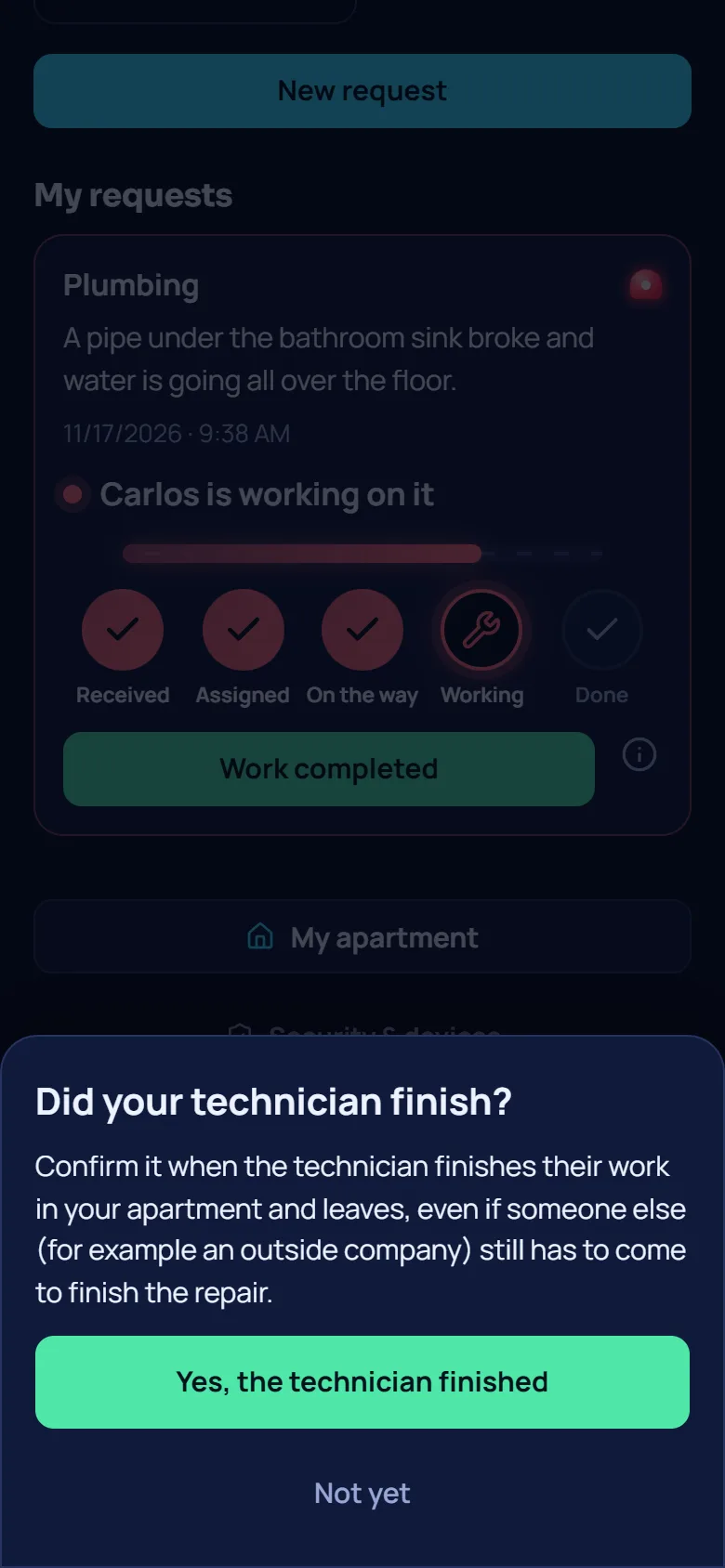
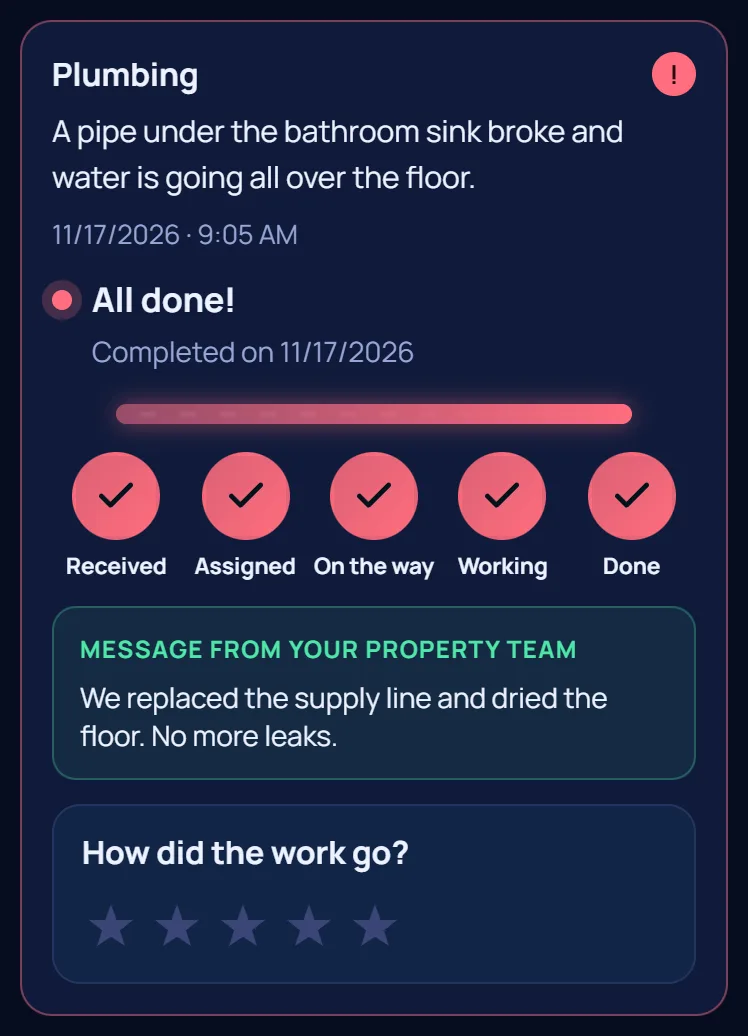
Once the technician has arrived or started the work, the request card shows Work completed with an “i”. Before the technician arrives there is no button.
- Confirm
The tap opens a sheet: Did your technician finish? The resident chooses Yes, the technician finished or Not yet. Only Yes saves the time. The sheet explains it is for when the technician finishes and leaves, even if an outside company still has to come.
- Undo for 5 minutes
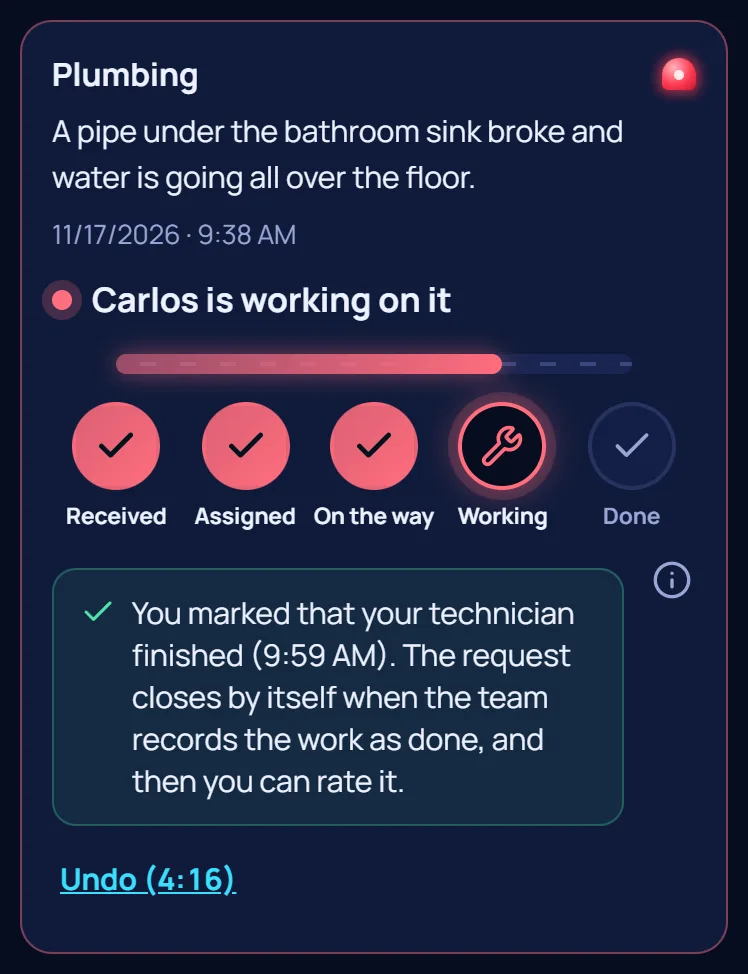
After Yes the card says the resident marked the work as finished and shows Undo with a countdown. The server counts the 5 minutes. After undoing, the button comes back. After 5 minutes it stays as it is.
- The request closes by itself
The tap does not close the request. It closes by itself when the technician marks the work order done. The resident gets the usual “Work completed” notice and can rate the work. For a normal (not emergency) request, the office closes it as usual.
The technician note and the doubtful flag
The confirmation is only a time. It never changes pay. Nothing is written to the time sheet or to payroll by itself. The property manager decides.
- The technician assigned to the order sees a card: The resident confirmed this emergency with the time only (never who, never what). They can add one short note (up to 300 characters), for example that they were waiting for a part. They can edit it until the property manager reviews it. Nobody else sees that card.
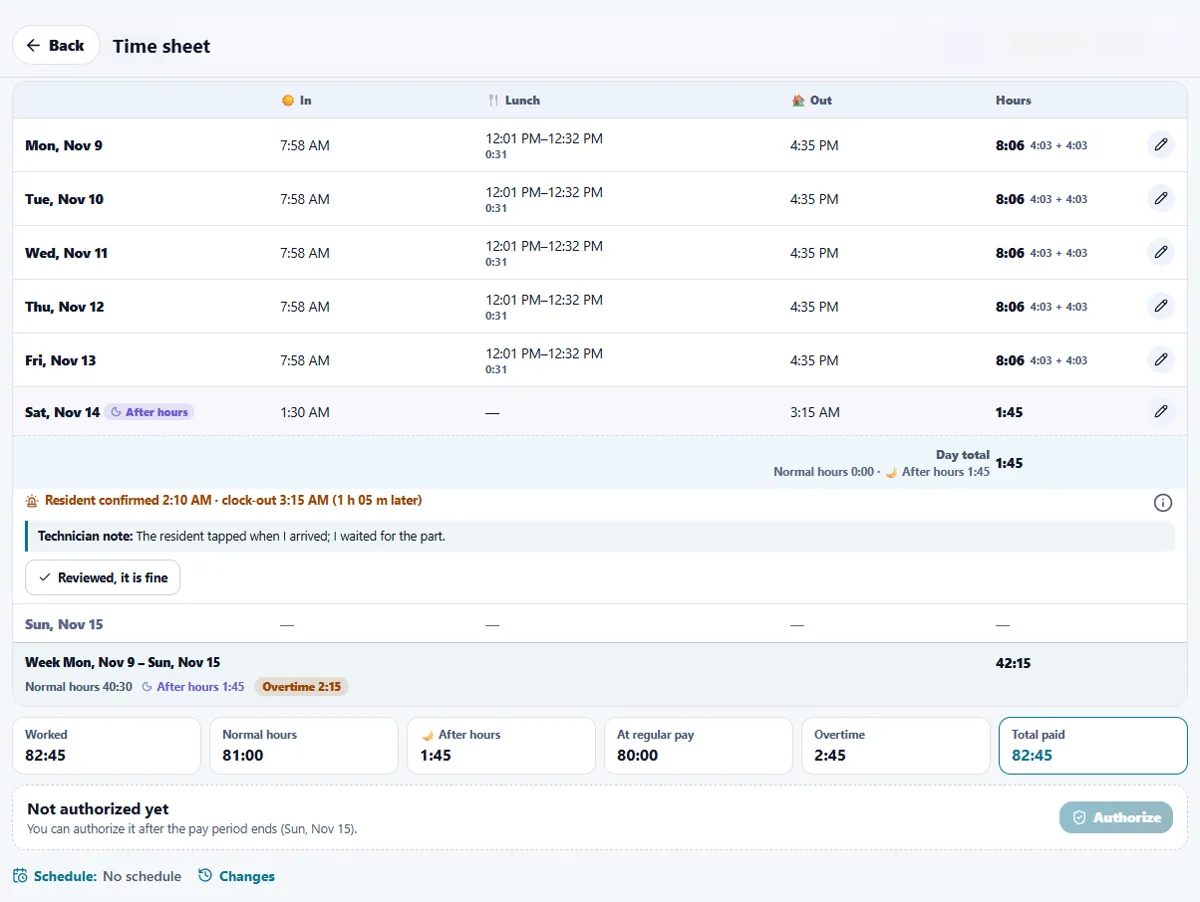
- The flag. When the technician clocks out more than 15 minutes after the resident confirmed, the team time sheet shows a line under that day: Resident confirmed 2:10 AM · clock-out 3:15 AM (1 h 05 m later). It only counts for an after-hours call-out or a weekend, using the property’s office hours. A property with no office hours set never shows it. The sheet shows no resident name and no place.
- Doubtful. If the resident tapped less than 10 minutes after the technician arrived, the line is marked Doubtful with the reason. It stays visible but does not count in the number on the person’s row or in payroll.
- Reviewed, it is fine. The property manager level can tap Reviewed, it is fine (with an optional note). The flag stops counting and stays as history with who reviewed it and when. Nobody reviews their own shift. The supervisor sees the flags but not the technician note or the review details.
- Payroll. In the Payroll portal a flag that counts appears as one “Review first” item for the person. Doubtful and reviewed flags never go there.
When parts are turned off
Emergencies themselves have no switch. If the Resident portal is off, residents have no button and the request does not close by itself, so the office releases the work as usual. If the Time clock is off, there is no flag, no technician card and no review. If On call is off, an emergency nobody has no longer goes to a person on call. Everything is kept and comes back when you turn the switch on.
Tips
A flag is a reason to talk, not a verdict. Read the technician note first, then decide. Pay is never reduced by the app.
Related guides
Ready to try it with your own property?
Create your workspace, add your property and turn on the modules you need.