Start here: Leaders
Leaders see every property of their company in one place. The Regional Manager, the company leader and the corporation leader use the same portal: you look at everything, you change nothing in a property's daily work, and you talk to the property managers.
- Who sees it
- Regional Managers, company leaders (VP, director, owner, investor) and corporation leaders. A Regional Manager sees the properties assigned to them.
- Where to find it
- The Company panel you land on after you sign in. Leaders are not members of a property team.
- What it needs
- An invitation by email, 2-step sign-in and your PIN for sensitive actions.
What you see
The top of the panel shows the company name, the number of properties and apartments and a Read only mark. The buttons next to it are Company summary, Messages, Campaigns, Leaders and Payments. Below is the list of properties, as a List or a Map, with a search box, a region filter and a Needs attention filter. Each row has an Open button.
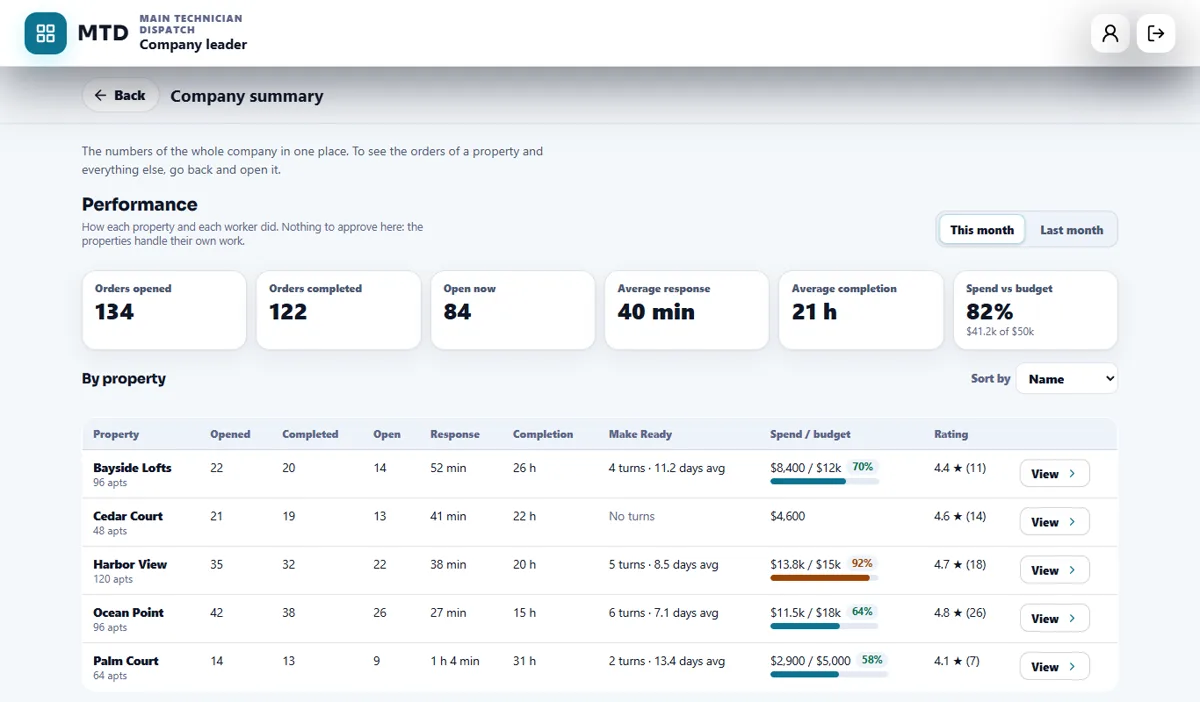
The Company summary is the performance of the whole company, this month or last month: orders opened and completed, orders open now, average response and completion time, and spend against budget, with one row for each property.

Your first 5 things
- Sign in safely
Accept the invitation, set up your 2-step code and your PIN. The panel asks for the PIN again for sensitive actions, and every property view is recorded.
- Read the Company summary
Tap Company summary, switch between This month and Last month and look for the properties that stand out. Nothing here needs approval: each property handles its own work.
- Find a property
Use the search box, the region filter or Needs attention, then tap Open. The Map view shows the properties on a map.
- Look inside a property
A banner says you see every module of the property and that its Property Manager makes the changes. Use the tabs, such as Orders, Make Ready, Inventory, On call, Hours, Staff and Ratings, to read what you need.
- Talk to the property managers
Tap Messages to write to a property manager directly, by message or by email, or to start a group chat where everyone writes or only you announce.
What you can and cannot change
- You cannot create, edit, assign or delete work orders, Make Ready, inventory, on call, time sheets, budgets or the staff of a property. The Property Manager does that.
- You can send messages, create inspection campaigns, invite other leaders, and handle payments.
- You can read the comments residents send about staff and the goals each property set.
A company's team sees only its own company. You see every property you are assigned. A property outside your assignment does not exist for you.
Inspection campaigns
A campaign asks your property managers to inspect apartments with a form you choose. Tap Campaigns, then New campaign, and go through four steps: Name and dates, Properties, Form and Review and send. Your PIN is asked when you send it, and a sent campaign cannot be changed. The list shows each campaign, with how many properties have approved it. It needs the Inspections module on in the properties that receive it.
Several companies under one corporation
A corporation groups workspaces. A property a leader adds gets its own workspace, so its team sees only that property, while the corporation's leaders see all of them. A workspace that joins keeps its own team and the properties it already holds. A leader can add a property, or bring in an existing workspace with its private property code. The property's top boss reveals the code with a fresh PIN and must accept before the workspace joins with its full history.
Your routine
- Start of the week: open the Company summary and the Needs attention filter.
- During the week: answer your property managers in Messages and follow your campaigns.
- Each month: compare This month with Last month and open the properties that moved the most.
Guides to read next
Ready to try it with your own property?
Create your workspace, add your property and turn on the modules you need.