Get Ready
Get Ready is a setup guide with ten steps. It checks most of them by itself with your property’s real data and gives each one a button that takes you to the right screen.
- Who sees it
- The property manager, and the other property managers of the same property. They all see the same progress. Nobody else sees it, and nothing in it is sent to your team or your residents.
- Where to find it
- The Get Ready pill with its progress bar in the header, the Get Ready card on the home screen, and Open Get Ready in Settings → Help.
- What it needs
- Nothing. This part is always on. A few steps point to a module (On call, Monthly goals, Residents) and ask you to turn it on first.
The ten steps
| Step | What you do | The Go button |
|---|---|---|
| 1. Your property basics | Check the name of each property and write how many apartments it has. | Go to My workspace |
| 2. Your apartments | Compare the count with your real apartments. It turns green when they are all saved. | Go to Apartments |
| 3. Invite your team | Share the group link or send personal invites, and approve each person’s role. | Go to Team |
| 4. Set hours and who is on call | Set the office days and hours and who is on call, or a rotation. | Go to On call |
| 5. Say what counts as an emergency | Check the suggested list, change what you need and save it. | Go to Emergency line |
| 6. Set arrival-time goals | Create the goal Emergencies started within 2 hours and adjust the hours or the percent. | Go to Monthly goals |
| 7. Add your residents | Add each rented apartment’s resident with name, apartment and email. | Go to Residents |
| 8. Install the app on staff phones | Install the app on each phone, sign in and allow notifications. It shows how many people have notifications on. | Copy the app link |
| 9. Try a practice order | Create an order titled Practice, assign it to a technician and let them finish it with a photo. | Go to Work orders |
| 10. Invite your first resident | Open a resident, send the portal QR or the access by email, and see the flow from their side. | Go to Residents |
Use the guide
- Open it
Tap the Get Ready card on the home screen or the pill in the header. The window shows 3 of 10 done and Next up, and the list of steps.
- Read a step
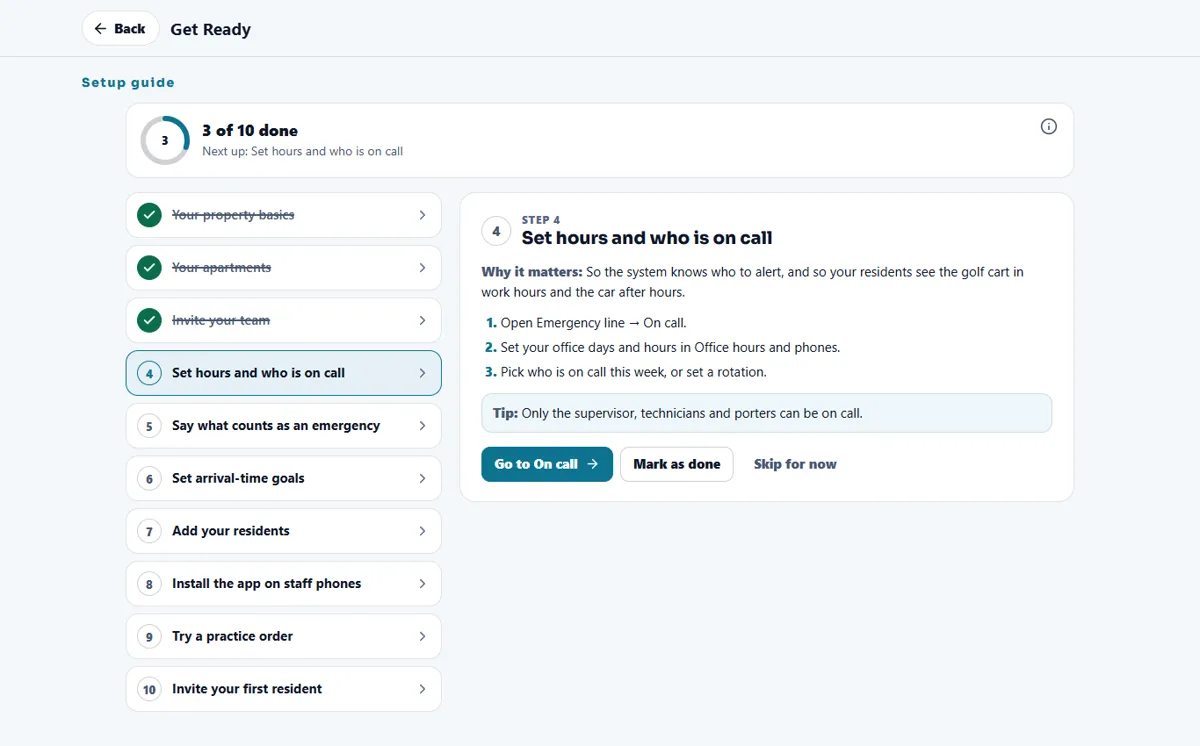
Tap a step. You see Why it matters, three short lines of How with the real button names, and a Tip.
- Press the Go button
The button opens the screen where the step is done. A Go button only shows when that screen opens for you. If a module is off, the button becomes Open Modules and the step says First turn on… in Modules.
- Let it turn green, or mark it
A step that the data confirms turns green with Done automatically, and it stays done. When you did it another way, tap Mark as done. Not now? Tap Skip for now; Undo skip brings it back. Mark as not done takes back a mark you made.
- Finish
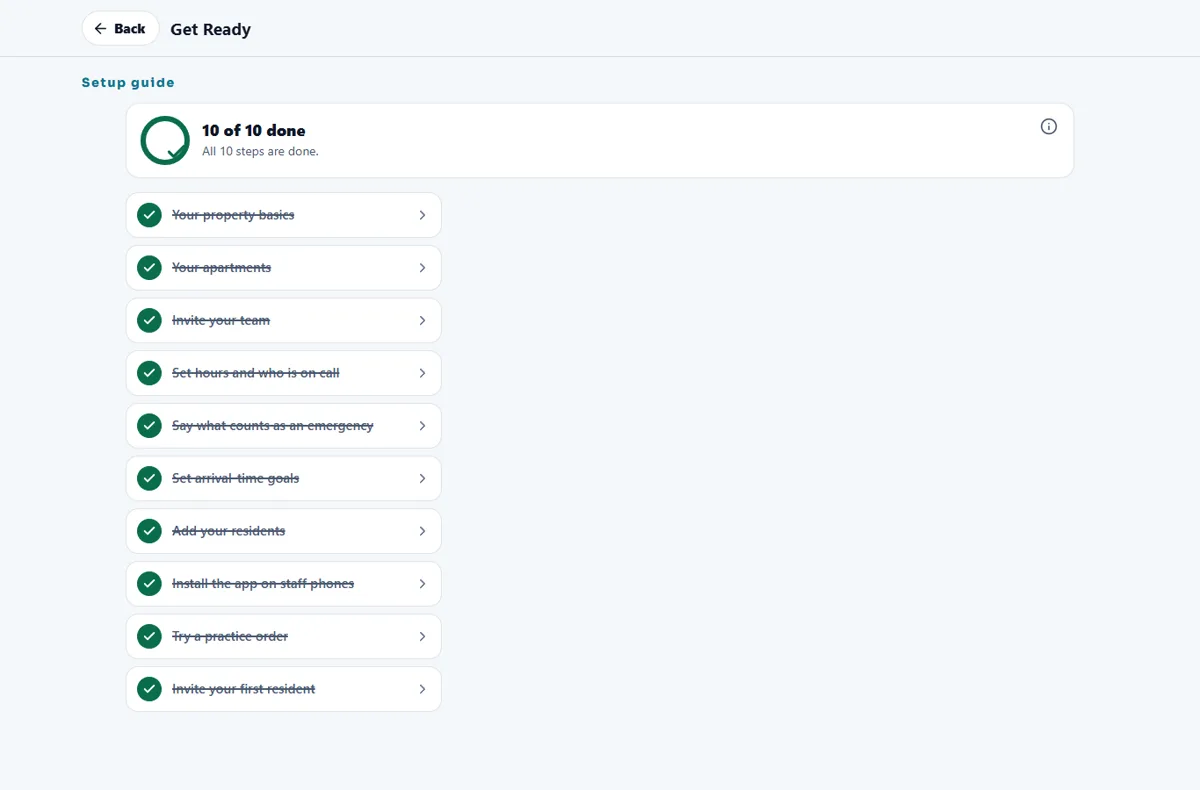
With all ten done you see Your property is ready! once. The pill leaves the header and, after you have seen that message, the card leaves the home screen. You can open Get Ready again from Settings → Help. The list is then frozen: it only shows what was done.

When the supervisor sets a step up
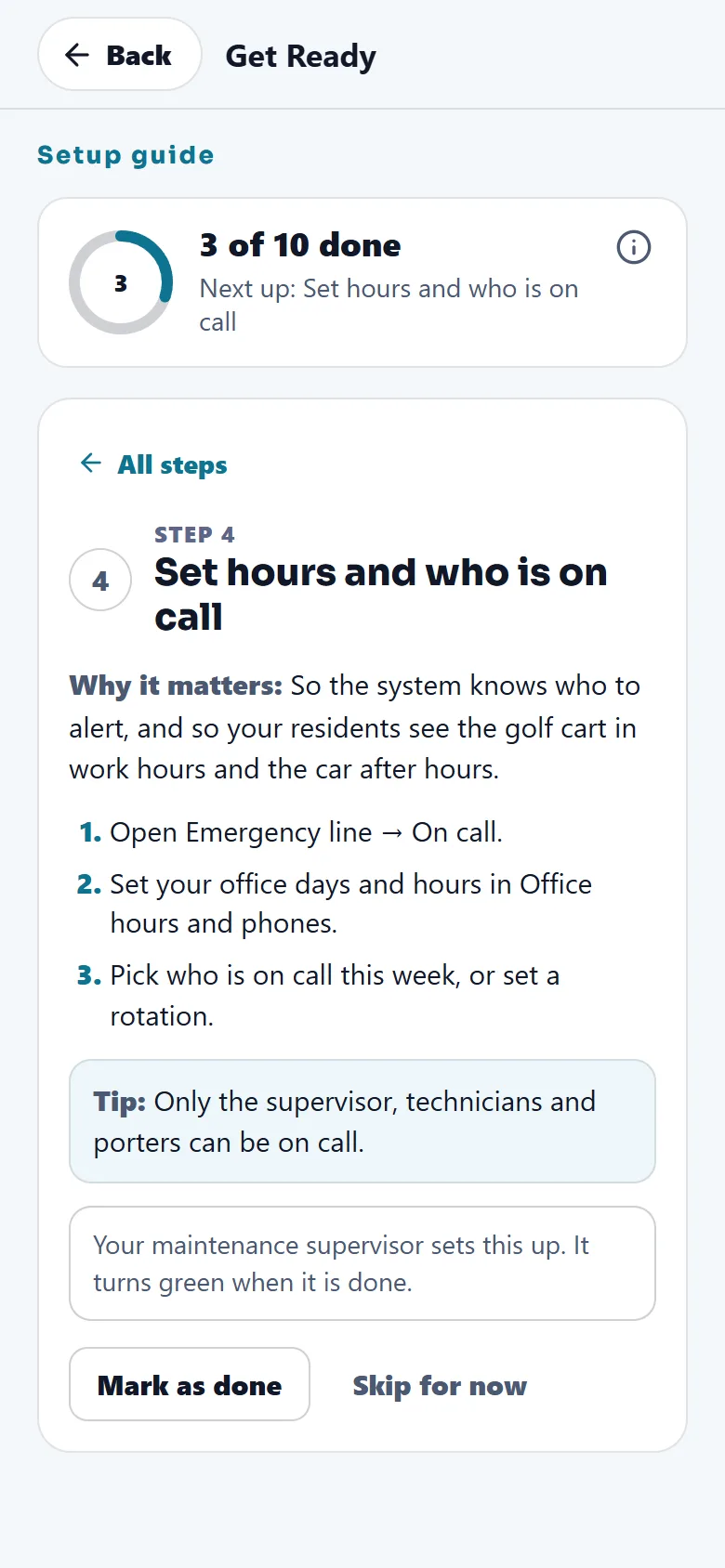
The Emergency line is the supervisor’s area when the property has an active maintenance supervisor. For steps 4 and 5 you then read Your maintenance supervisor sets this up. It turns green when it is done. and there is no Go button: you can still tap Mark as done or Skip for now. If the Emergency line is not open for you for another reason, the note says it turns green by itself when it is set up.
When everything is done
Tips
Do the steps in order the first week, and invite your maintenance supervisor first: the supervisor can approve the technicians. Start the practice order with the word Practice in the title so everybody knows it is a test.
Related guides
Ready to try it with your own property?
Create your workspace, add your property and turn on the modules you need.