Payroll portal
The Payroll portal is one read-only screen where your company's payroll team sees the hours and pay of every property, who approved each time sheet, and what to look at first. Payroll can look and download, but it can never change a punch.
- Who sees it
- People on the payroll team of the company account, a separate sign-in that the company leaders approve. Leaders see who is on the team and what they did. Each Property Manager approves the hours of their own property.
- Where to find it
- The payroll team signs in and lands on the Payroll screen. Leaders open Payroll team from the Company panel. Property Managers work in the Team time sheet.
- What it needs
- The Time clock turned on at the property. A property with the time clock off shows Time clock is off and nothing else. Use a computer.
What it is for
Payroll needs the hours of many properties at the same moment, each with its own pay period. The portal lines them up in one list, says which are approved, ranks the things that deserve a look by the money involved, and gives one file for all properties or one per property. The pay shown is worked out from the rates the Property Manager of each property set.
The portal never shows where a punch happened. For each punch it shows the kind of device used, so a payroll question can be answered, and whether the punch was inside the property area. Time off shows hours only, never the type. Every view and every file is recorded, and the company leaders and each property can see that record.
Read the list of properties
- Sign in and pick the pay period
The payroll team signs in with a password, a 6-digit code from an authenticator app and a PIN. At the top, use the arrows to move between pay periods, Current period to come back, or Choose dates for any range up to 31 days.
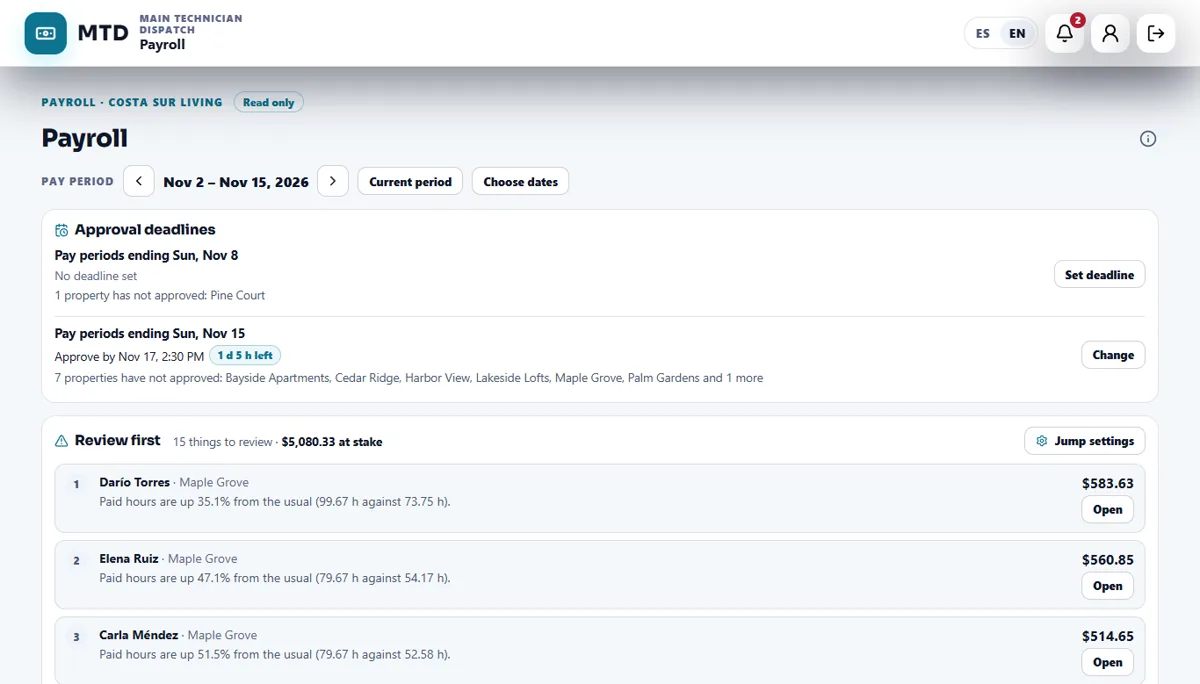
- Check Approval deadlines
Tap Set deadline (or Change) to choose the day and time a pay period must be approved by. The list says which properties have not approved and how much time is left. Property Managers who have not approved are reminded once a day. The reminder never carries an amount.
- Read the status of each property
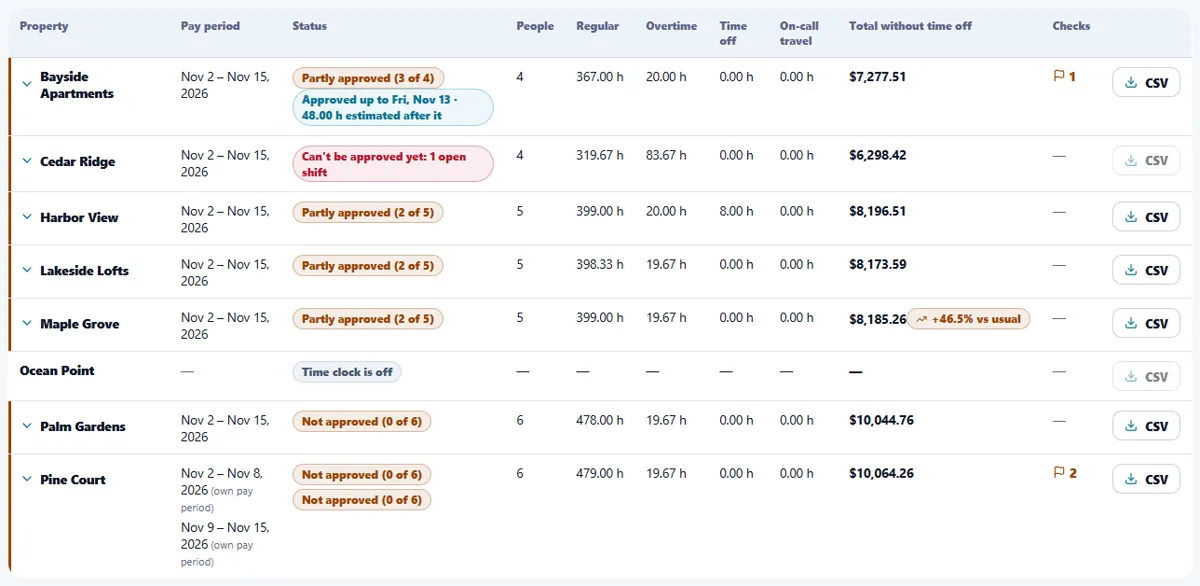
Each row shows People, Regular, Overtime, Time off, On-call travel and Total without time off, with a status: In progress, Not approved, Partly approved, Approved, or Can't be approved yet when a shift still has no clock-out. Approvals appear after the pay period ends. Use All, Needs attention, Approved and the search box to narrow the list.
- Open a property
Tap a row to see its people: position, rates, pay, who approved and when, and a comparison with the last pay period and with the usual of the four before.
Use Review first
Review first is a ranked list of what deserves a look, with the money at stake and a plain sentence about why. It can flag shifts that were closed automatically, changes made after approval, early clock-ins let through by on call or an emergency, overlapping shifts, long shifts, long shifts with no lunch, overtime far above the usual, jumps in paid hours, an approval that was taken back, and emergency confirmation lines.
- Start at the top
The first item has the most money behind it. Tap Open to go to that person.
- Set what counts as a jump
Tap Jump settings. A change is flagged only when it is big in percent and big in money at the same time, so a small number never raises a flag. A new person is never a jump, and a pay period that has not ended is not compared.
- Look at the evidence
Under each pay period, Shifts and evidence opens each shift: the punches, the work orders completed during it, and every correction with who, when and why. Punches and devices lists the device used for each punch.
- Read the emergency lines
When a technician clocked out more than 15 minutes after the resident confirmed an emergency was fixed during an after-hours or weekend call-out (using the property's office hours), the person's row shows that line. It is only a flag: pay is never reduced because of it.
Download the files
- Export all or one property
Tap Export all (CSV) for every property, or CSV on a row for one. A window says how many properties go in, and which are left out and why, for example a shift still open in an ended pay period. Tap Download CSV.
- Reconcile with the totals
Every file ends with a totals summary per property and in total, so you can reconcile before you pay.
- Use the file for another system
File for another system gives one line per person and day, from approved hours. You choose once what your payroll system asks for.
- Read Changes after export
If hours change after you downloaded a file, the difference in hours and pay is listed. The next file carries it and the list starts again.
Invite and manage the payroll team
This is done by the company leaders in the Company panel, under Payroll team.
- Invite a person
On the People tab, write the email of the person. They sign in with that email, set up the 2-step code, and then wait for approval.
- Approve
Another leader of the company approves the access. Each property's Property Manager is told that a payroll team can see the hours.
- Watch the Activity tab
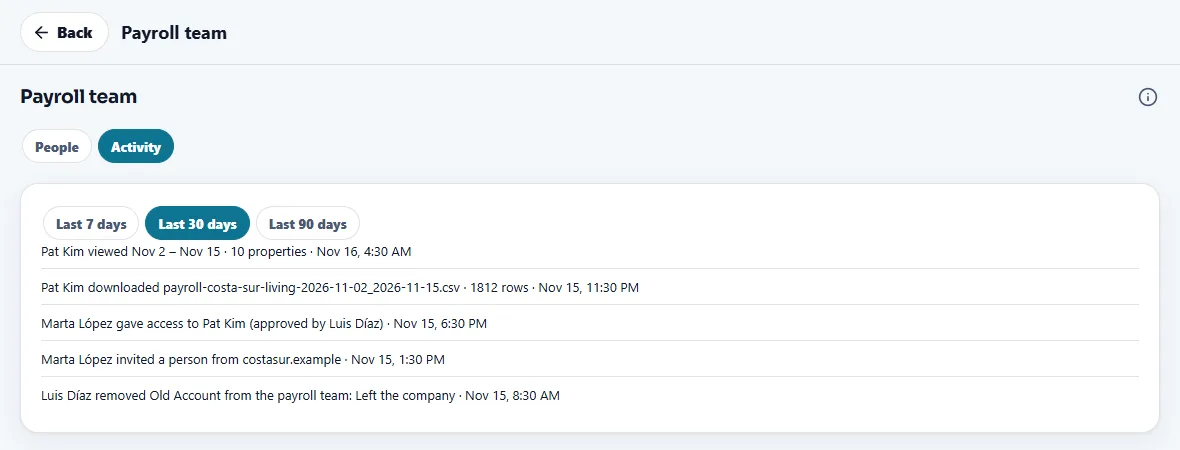
It lists who viewed which pay period, who downloaded which file, who set a deadline and who was invited or removed.
- Remove access
Tap Remove. Their sessions end at once and they no longer see any hours or pay.
What the Property Manager does
- Check Before you authorize
In the Team time sheet, this card warns about shifts with no clock-out, shifts marked Needs review, corrections without a reason, overlapping shifts, long shifts and missing lunches. Fix what you can first. It only warns, so you can still authorize.
- Authorize
After the pay period ends, tap Authorize. Payroll then sees the person as approved.
- Choose the compliance flags
In Settings, Compliance flags lets you choose when a long shift, or a long shift with no lunch, is flagged. Payroll sees the same flags.
- Approve up to a day when payroll needs it early
For a holiday, tap Approve up to a day and choose a finished day. The days after it are estimated and marked Estimated, and the next pay period shows the true-up against the real hours. After the period ends, Authorize the rest.
Tips
Open the portal the day after a pay period ends and start with Review first. Most questions are answered by Shifts and evidence without writing to anyone. When something is wrong, ask the Property Manager to fix it: payroll never edits time.
When the module is turned off
The Payroll portal has no switch of its own, but it depends on the Time clock. For a property whose Time clock is off, the row says Time clock is off, no hours or pay are shown, and the property is left out of the files. The hours already saved are kept and come back when the Time clock is turned on again.
Related guides
Ready to try it with your own property?
Create your workspace, add your property and turn on the modules you need.