Start here: Payroll team
The payroll portal gives your company's payroll team one screen with the hours of every property: who approved each time sheet, the hours and the pay, and a file to download. You read and export. You never change hours.
- Who sees it
- The people your company's leaders add to the payroll team.
- Where to find it
- You land on it after you sign in. It works on a computer and on a phone.
- What it needs
- An invitation by email, the 6-digit code of your 2-step sign-in, your PIN, and approval by another leader.
What you see
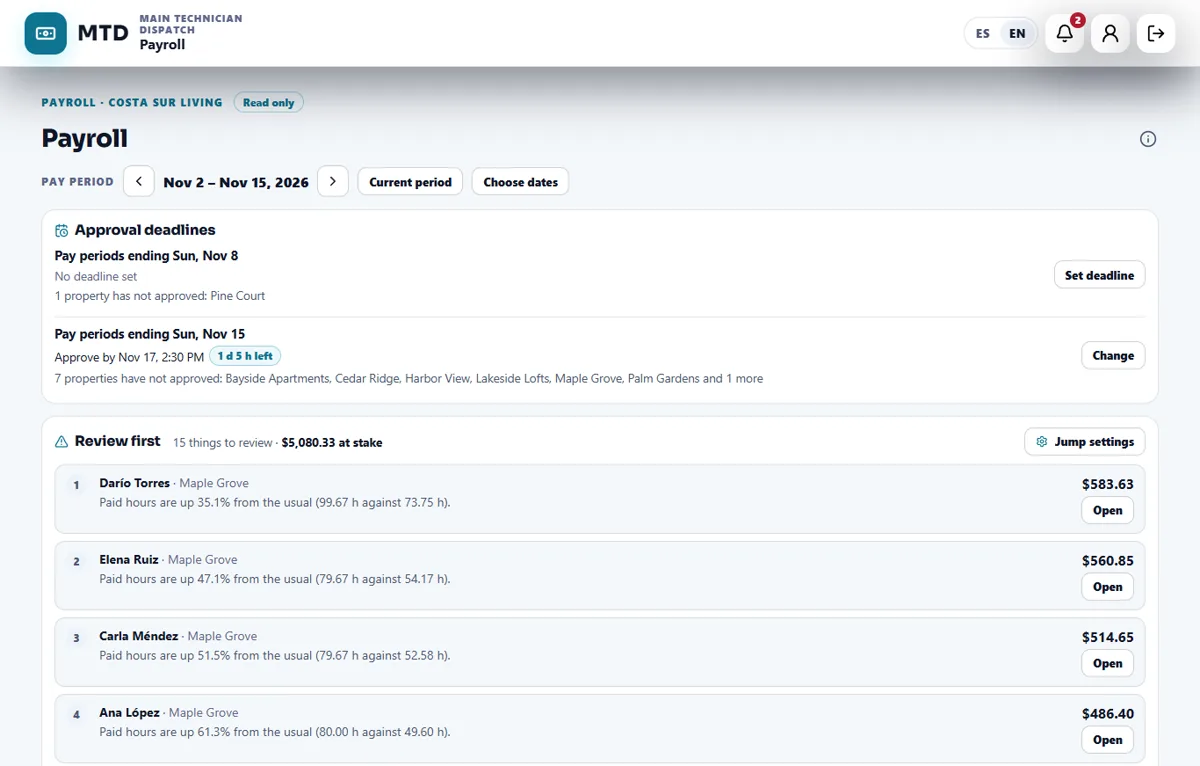
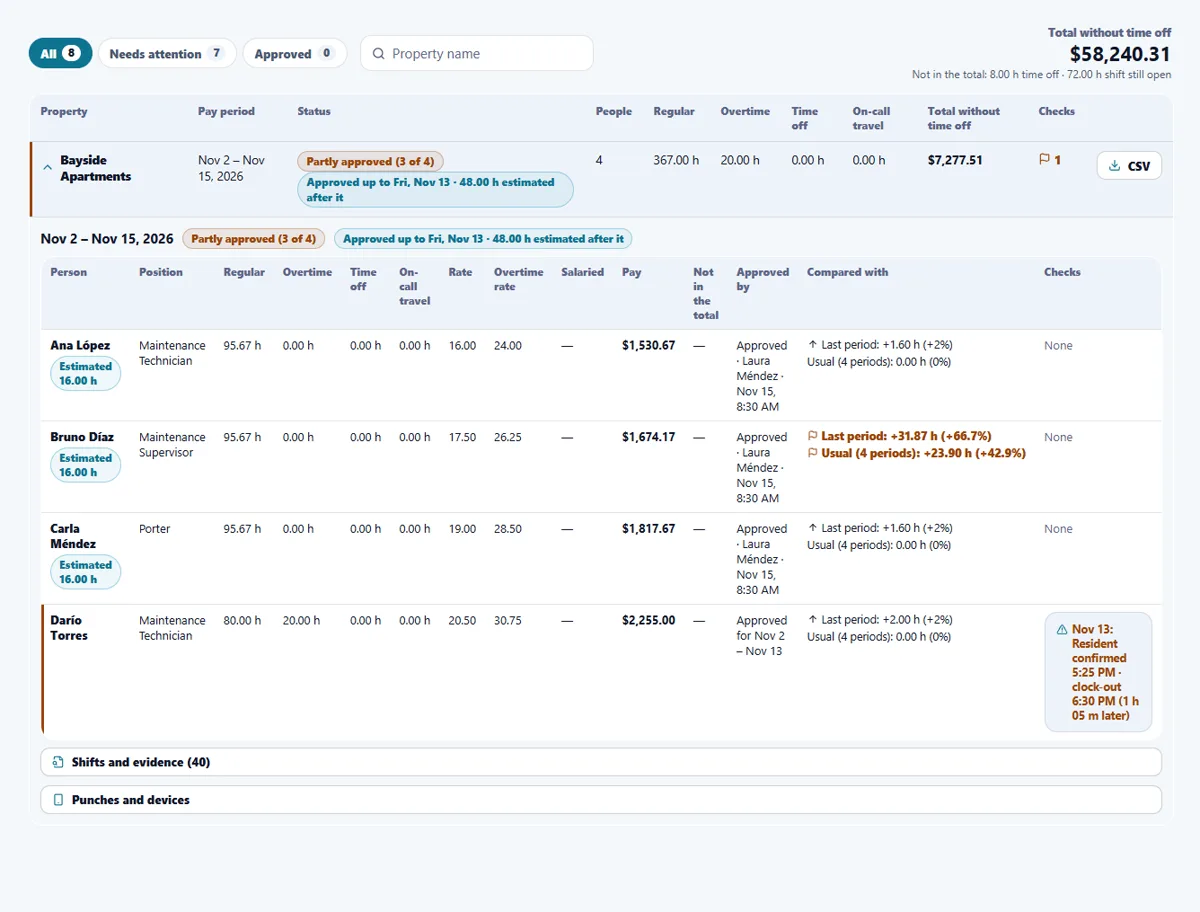
The screen is marked Read only. It shows every property of the company, each with its own pay period. Near the top are the Approval deadlines and the Review first list. Below them is the list of properties with their status, the people, the regular hours, the overtime, the time off and the total, plus a CSV button for each property and Export all (CSV). Open a property to see each person, the rate, who approved the hours and when.
Your first 5 things
- Get your access
Your company's leaders invite you by email. You sign in with that email, set up the 2-step code, and another leader approves you. Your PIN is asked for sensitive actions.
- Choose the pay period
Use the arrows next to Pay period, tap Current period, or tap Choose dates (up to 31 days apart). Each property can have its own pay period.
- Check the approval deadlines
Under Approval deadlines you see the day and time each pay period must be approved by, how long is left and which properties have not approved yet. Tap Set deadline or Change to set it. The Property Managers who are missing get a reminder once a day.
- Work the Review first list
It lists what deserves a look, ranked by the money at stake, and says why in plain words: jumps in hours, shifts closed automatically, long shifts, missing lunches and more. Tap Open on an item to go to that person.
- Download the file
Tap the CSV button of a property, or tap Export all (CSV). The file carries the hours, the rates and the pay, and ends with a totals summary so you can reconcile.
What you can and cannot do
- You see the hours and the pay Main Technician Dispatch works out from the rates each Property Manager set.
- Time off shows hours only, never the type, and it is not in the money total.
- Under each pay period, Shifts and evidence and Punches and devices show each punch, the kind of device it came from and whether it was inside the property. They never show where. Emergency lines show for a shift when a resident confirmed finished emergency work during an after-hours or weekend call-out (using the property's office hours) and the technician clocked out more than 15 minutes later.
- Only the property's Property Manager fixes or approves time.
Every view and every file is recorded, and your company's leaders and each property can see that record. Times are in each property's own time zone. Check the amounts before you pay.
Your routine for each pay period
- Watch the approvals. The bell tells you when a property approves its pay period and, once a day, how many properties are still missing.
- Review first. Open the items with the most money at stake before you export.
- Export. Download the file for all properties, or one property at a time. A property that cannot be approved yet says why, for example an open shift.
- After you export. Changes after export lists hours that changed after a file was downloaded. The next file carries them and the list starts again.
Connecting your payroll provider
The Property Manager sets this up, not the payroll team. In Profile, My workspace, a payroll connection card sits next to the property system connection. It needs the Time clock on. Its Files tab builds a file of approved hours for your payroll system, with the columns, the separator and the formats you choose, and its Employee numbers tab saves the number each person has in the payroll system. A Connection tab, to link your payroll provider directly, appears only when that feature is switched on for your company. There, the card explains what to ask your payroll administrator and has a Copy button for the request, the connection details are saved encrypted and only the last 4 characters show, and the Property Manager can run Test connection (it reads one employee and writes nothing) or delete the connection at any time.
Guides to read next
Ready to try it with your own property?
Create your workspace, add your property and turn on the modules you need.