Team and roles
Team is where you invite people, approve who they are in the team, open each person's card, change a position, remove access and choose who can do what. It is part of the core app and has no switch.
- Who sees it
- Everyone sees the Team list. The Property Manager invites, approves roles, changes positions, removes people and sees pay. The maintenance supervisor can invite, approve and change the position of the people below the supervisor, such as technicians and porters.
- Where to find it
- The Team tile on the home screen. Delegate access is inside the Team window. Company policies are in the menu for everyone.
- What it needs
- Nothing to turn on. This part is always on.
What it is for
People get into the team in a controlled way: an invitation, then a position that someone above them approves. The positions form a ladder. From the top: Property Manager, Assistant Property Manager, Leasing Manager and Maintenance Supervisor, Leasing Consultant and Maintenance Technician, and Porter. You can only act on people below your own position.
Invite people
- Open Team
Tap the Team tile. The window lists People in this workspace and has the invitation buttons.
- Invite a group
Tap Create group invite link. Share the link or the code with a group. Each person creates an account if needed, chooses their own position and waits for approval. The link works for 7 days. Tap New code to stop the old link and make a new one.
- Invite one person
Under Invite one person choose Invite as, then By email or By phone. The person still chooses their own position, and that position must be approved.
- Approve the position
Under Position approvals, each request reads Requests and the position. Tap Approve or Reject. The approval follows the management hierarchy.
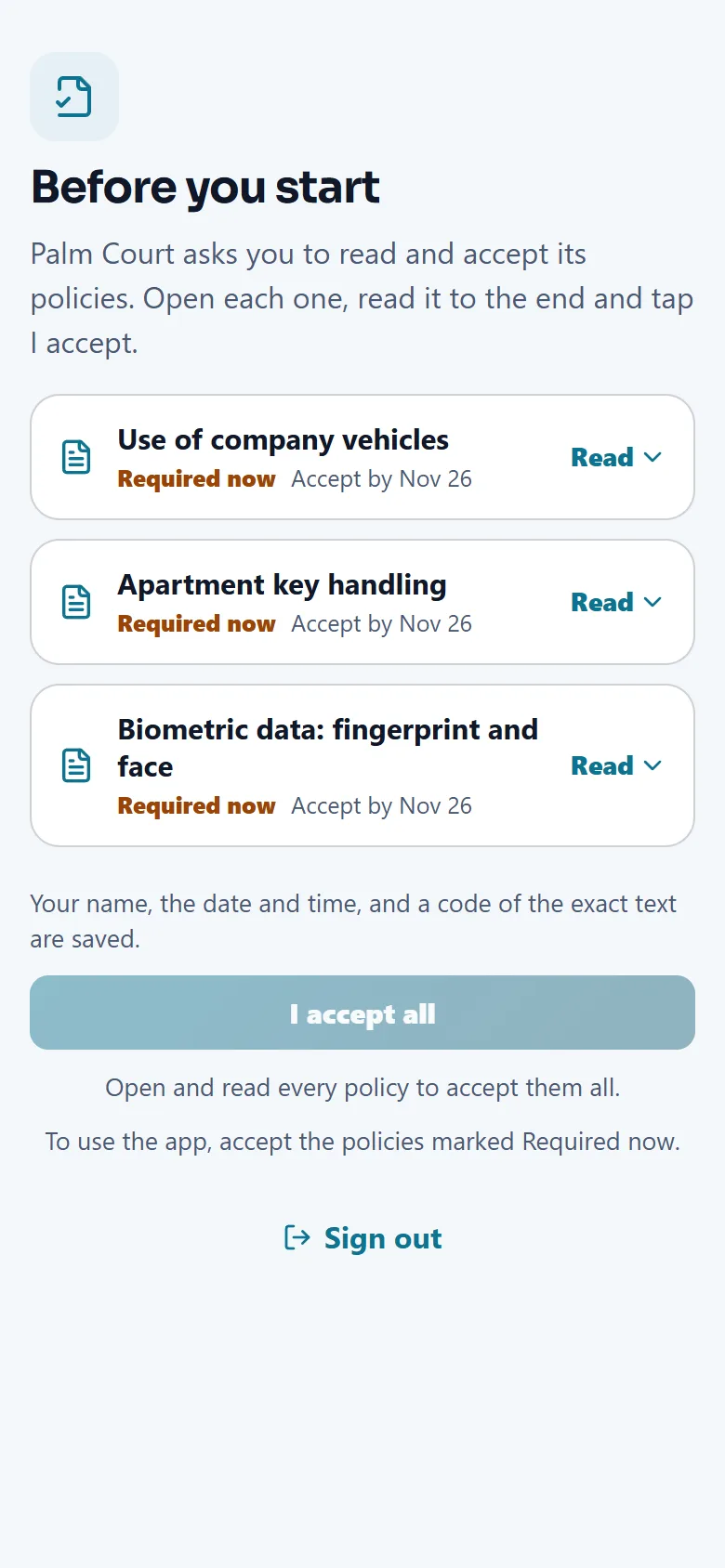
When a person joins, the company policies you published appear before the app opens. They open each policy, read it to the end and tap I accept. Their name, the date and time and a code of the exact text are saved.
Open a person's card
- Tap a name
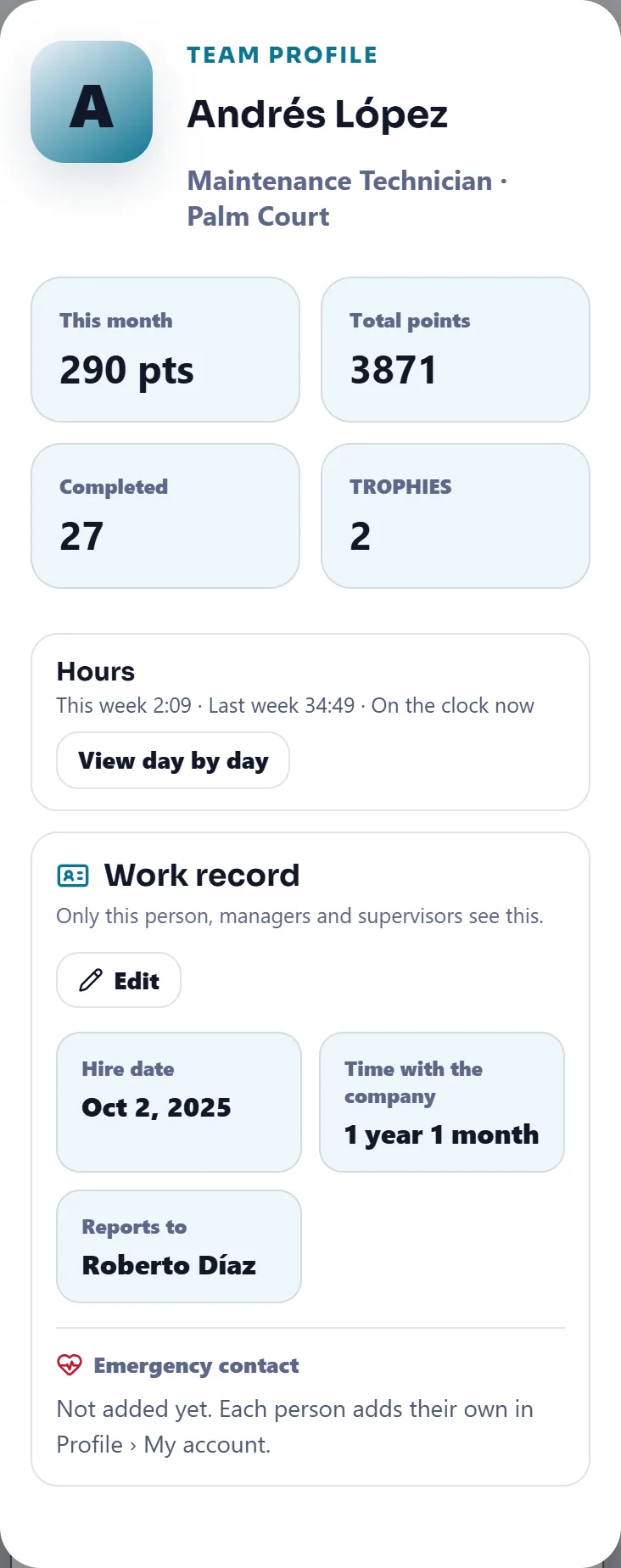
The Team profile shows points, completed work, trophies and the hours of this week and last week, with View day by day.
- Read the Work record
Hire date, time with the company, who the person Reports to and their emergency contact. Only the person, managers and supervisors see it. The hire date counts for time off, and only the Property Manager and above change it.
- See pay, if you manage it
Pay is private. Tap Show pay and enter your 4-digit PIN. Every view and every change is recorded.
Change a position or remove a person
- Change position
On the card tap Change position, pick the New position and write an optional Reason. The change is immediate and the person is told. Hours, points, trophies and history stay, and their access switches go back to the defaults of the new position. For a person with open work orders, they go back to the Open list. You cannot change your own position, and the account that pays for the workspace keeps its position.
- Set the pay for the new position
After the change you can set the Pay type, Hourly or Salaried, and the hourly rate, or keep the current pay. Salaried people do not use the time clock.
- Remove from the team
Tap Remove from the team and enter your password. The person loses access at once and is signed out. Their completed work, points and history stay, and their open work orders go back to unassigned.
Choose who can do what
Delegate access is for the Property Manager, or the person left in charge. Every position starts with what its role allows, and you can undo any change.
- Open Who can do what
Tap a person to see their switches, grouped as Time sheet, Vendors, Residents, Goals and reports, and Workspace. Each shows how many changes you made.
- Switch and save
Turn a switch on or off, confirm with your password or fingerprint and tap Save changes. Every change is recorded and the person is told. Back to the role's defaults undoes them all.
- Leave someone in charge
On the In charge tab choose someone from the office to cover while you are away. There is no time limit, and you can end it whenever you want.
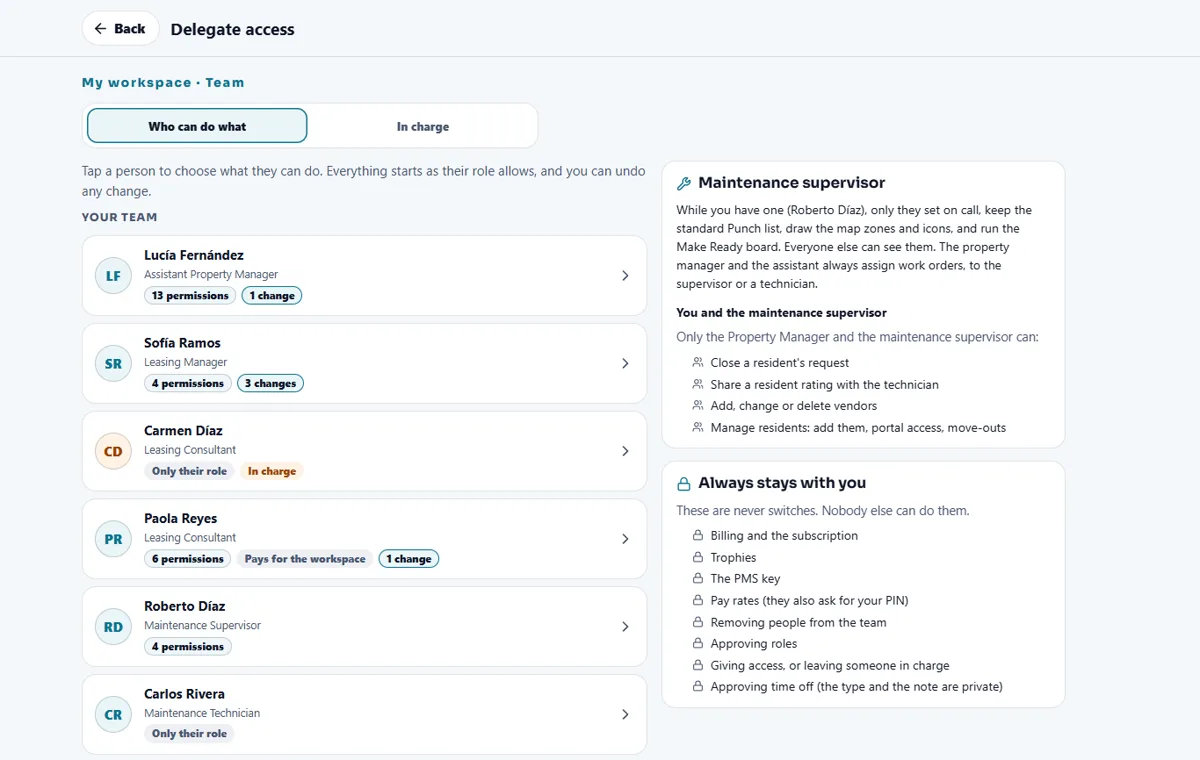
These are never switches: billing and the subscription, trophies, the property system key, pay rates, removing people from the team, approving roles, giving access or leaving someone in charge, and approving time off.
Tips
Invite with a personal invite when you know the person, and with the group link only for a group you are standing in front of. Use New code after a group joins, so the old link stops. Check Position approvals each morning: a person waiting for approval cannot work yet.
When the module is turned off
Team and roles have no switch, so they never go away. Switching modules off only hides those parts of the app, and the people and their positions are not affected.
Related guides
Ready to try it with your own property?
Create your workspace, add your property and turn on the modules you need.