Time off
Time off is where people ask for vacation, sick days and personal days, see what they have left, and where the Property Manager approves, with a shared calendar of who is out. It is part of the app for everyone and has no switch.
- Who sees it
- Everyone on the team sees the Time off tile. Each person sees their own balance and requests. The people who approve also see the Approve tab, and the managers who set the rules see Manage.
- Where to find it
- The Time off tile on the home screen. It shows a number when requests are waiting for you.
- What it needs
- This part is always on. To ask, a person needs someone who can approve. If nobody can yet, the screen says so.
What it is for
Time off keeps requests, balances and answers in one place instead of text messages. Each position earns hours by its own rule, the person sees what is left before asking, and the manager sees who else is out before answering. Teammates only see that someone is out. The type and the note are only for that person and the Property Manager.
Ask for time off
- Open Time off
Tap the Time off tile. The Mine tab shows My balance for each type (Vacation, Sick, Personal day, Float days, and any type your company added), with what is Used and Waiting. Use the year buttons to look at another year.
- Read the policy
If your company wrote a time-off policy, read it and tap I agree before your first request.
- Tap Ask for time off
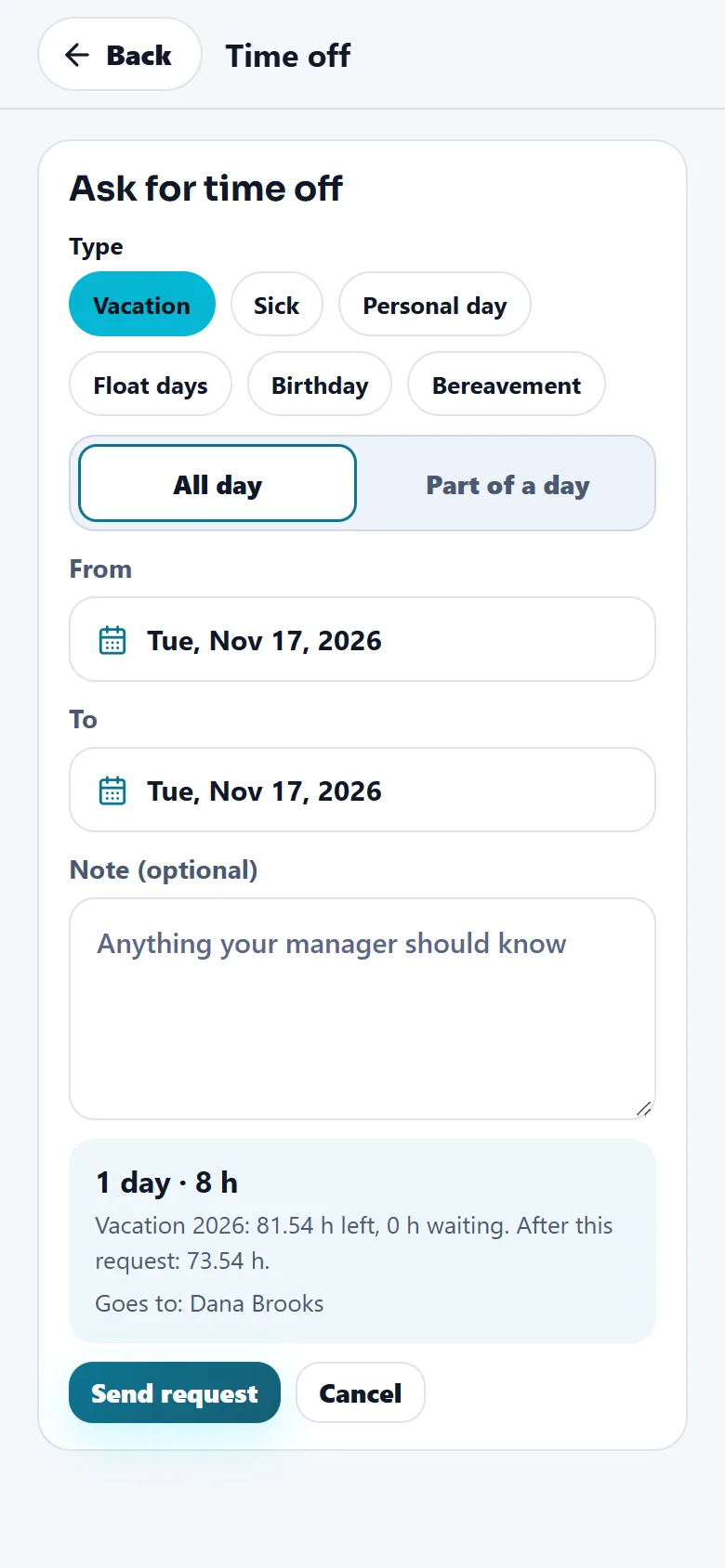
Pick the Type, then All day or Part of a day, and the From and To dates. A request can cover up to 31 days in a row. Add a Note if your manager should know something.
- Check the summary and send
The summary shows the days, the hours and what you would have left. If it is more than your balance, it says your manager will decide. Tap Send request. You will get a notification with the answer.
Changed your mind? Under My requests tap Cancel request while it is Waiting. After it is Approved, tap Ask to cancel and your manager answers.
See your balance
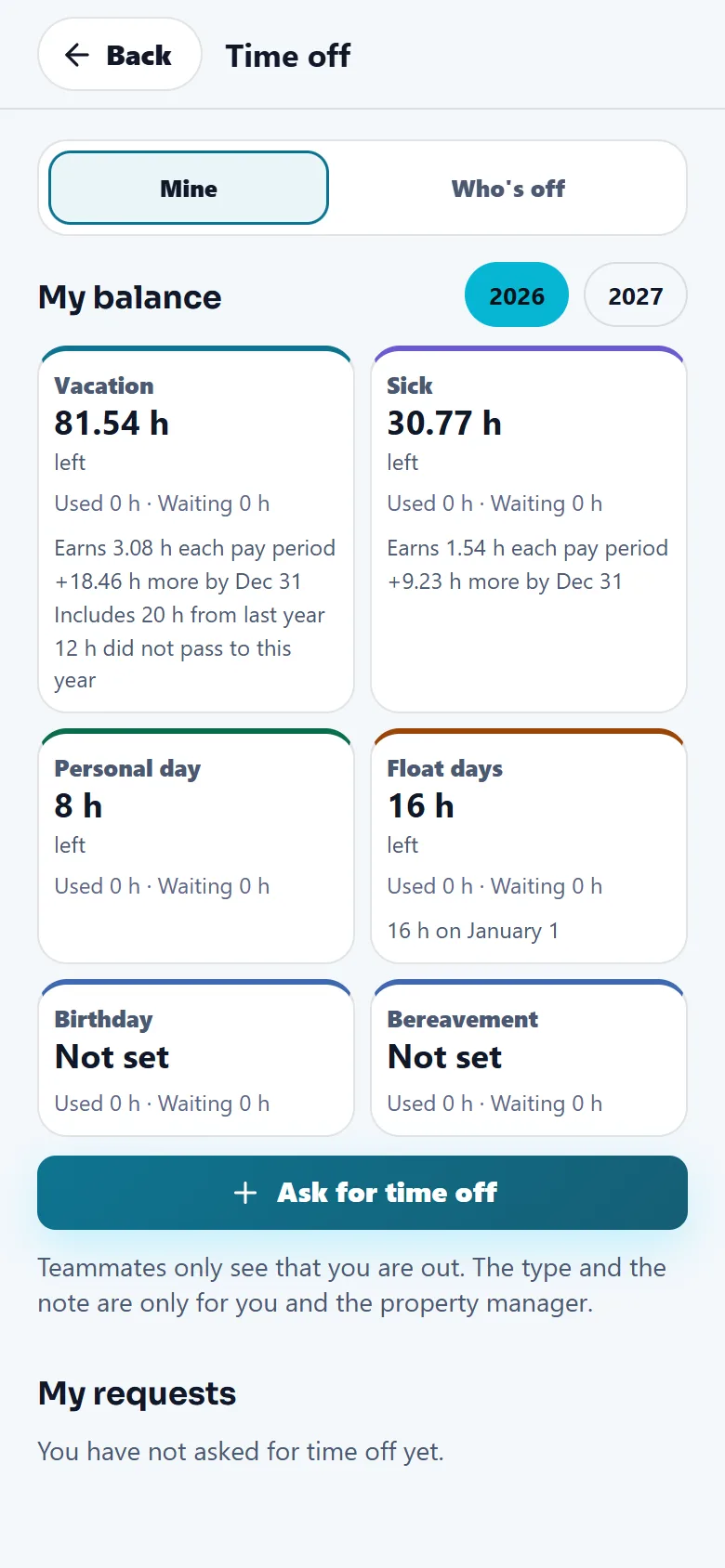
A card can also say how much the person earns each pay period, how much is still coming by December 31, and how many hours passed from last year.
Approve requests and see who is off
- Open the Approve tab
Each waiting request shows the person, the days, the note, who else is also off those days, and the balance after approving.
- Approve or deny
Tap Approve, or Deny with an optional reason. The person gets a notification.
- Answer a cancel request
When someone asks to cancel approved time off, choose Cancel the time off or Keep it approved.
- Use Who's off
This calendar is for everyone. It shows who is out each day, with dashed marks for requests still waiting. People who approve can cancel a time off from here.
The Property Manager approves everyone's time off. The owner or a manager approves the Property Manager's, and everyone's when the workspace has no Property Manager.
Set the rules for your team
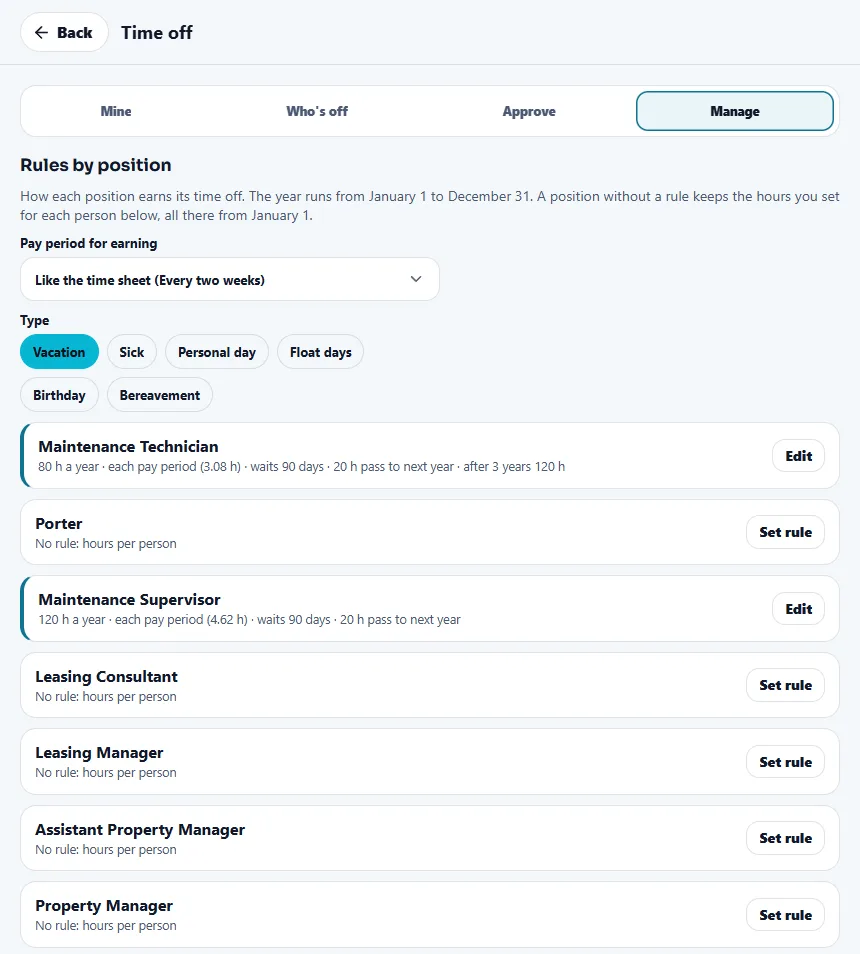
The Property Manager and the managers above open the Manage tab and set the rules. The assistant Property Manager can help with the policy and the hours of a full day, but not with the rules by position.
- Rules by position
Pick a type, then tap Set rule or Edit for a position. Choose the hours a year, whether they are earned a little each pay period or all on January 1, how many days new people wait, how many hours pass to the next year, and more hours with seniority.
- Types of your own
Add types such as birthday or bereavement. A type that was already used can only be hidden, and its history stays.
- The policy and the full day
Write the Time-off policy. If you change the text, everyone agrees again before their next request. Set how many hours a full day off is.
- Yearly hours per person
For positions without a rule, set each person's hours a year, or add or take hours with a reason. The changes of the year are listed.
Tips
Set the rules before you invite the team, so every person sees a real balance from the first day. A change to a rule counts from January 1 of this year and also recounts what passed from last year. Use Who's off before you approve, to avoid two people out on the same busy day.
When the module is turned off
Time off has no switch, so it never goes away. A person with approved time off is never marked late in the time sheet, and approved days are shown apart from worked hours.
Related guides
Ready to try it with your own property?
Create your workspace, add your property and turn on the modules you need.